USB-C is standardized, so why do identical-looking cables still fail?
The plug is universal, but the capabilities are not. Charging, data, video, USB4, Thunderbolt and e-marker support can all differ behind the same USB-C shape.

USB-C was supposed to be the end of the drawer full of weird cables. One small reversible connector for phones, tablets, laptops, cameras, power banks, handheld consoles, monitors and docks. In one sense, it worked: the physical plug is now everywhere. In another sense, it created a new kind of confusion. Two cables can look identical, fit the same port, and behave completely differently.
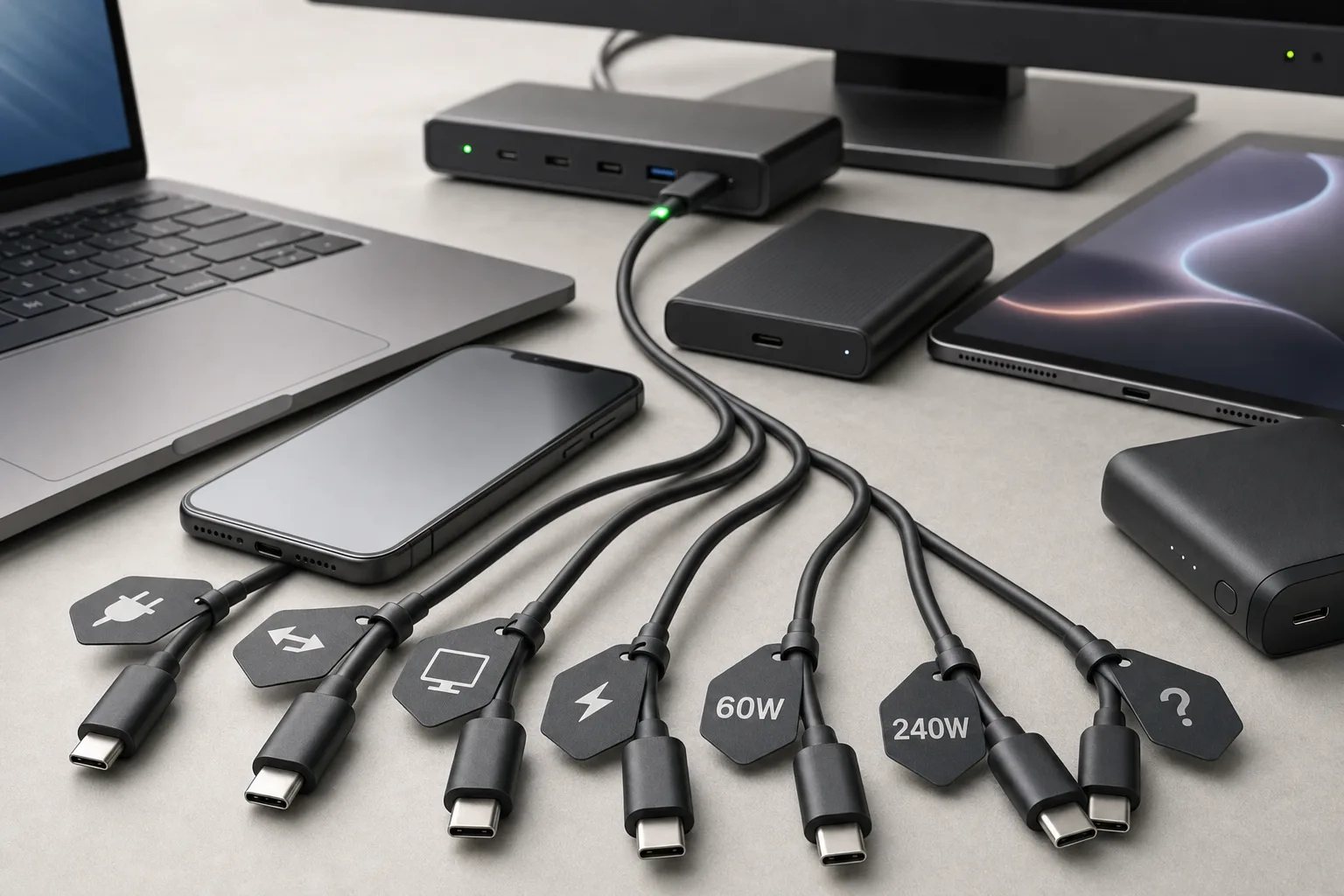
The frustrating part is that the failure is not always “slow charging”. Sometimes a cable charges a phone but does not move data. Sometimes it moves files but refuses to drive a monitor. Sometimes a laptop charges through one cable and ignores another. Sometimes a dock works with a short cable but not a longer one. Sometimes a portable SSD drops to USB 2.0 speed even though both ends are USB-C. To a normal buyer, that looks like the standard is broken.
The more precise answer is less satisfying: USB-C standardized the shape of the connector, not every capability that can travel through it. The port is a door. Behind that door there may be USB 2.0, USB 3.x, USB4, Thunderbolt, DisplayPort Alternate Mode, Power Delivery, vendor fast charging, an e-marker chip in the cable, or almost none of those things.
That is why the same connector can feel universal and unreliable at the same time.
The connector is not the protocol
The first trap is the name itself. USB-C is a connector type. It describes the 24-pin reversible plug and receptacle. It does not automatically mean fast data, video output, 100-watt charging, 240-watt charging, Thunderbolt, USB4, or even USB 3.0.
A cheap USB-C cable may contain only the wiring needed for charging and USB 2.0 data. That can still be a valid cable for many uses. It will charge a phone. It may sync photos slowly. It may connect a keyboard, a microphone, a game controller or a small gadget. But it will not necessarily run an external SSD at high speed, connect a laptop to a display, or support a docking station.
A better cable may include the additional high-speed pairs needed for USB 3.x or USB4. Another may be certified for Thunderbolt. Another may include an e-marker chip that tells the charger and device the cable can carry 5 amps. Another may be built for 240W Extended Power Range. From the outside, all of them are just black USB-C cables.
This is the part that users on forums keep rediscovering. A person switches fully to USB-C, packs one or two cables for a trip, and then learns that the cable that charges the phone does not run the portable monitor, or the cable that came with earbuds is useless for a laptop dock. The EU common-charger push fixes the plug shape for many consumer devices. It does not make every cable a full-featured cable.
Why a cable can charge one device and not another
Charging looks simple, but USB-C charging has layers. At the most basic level, a USB-C connection can provide modest power. With USB Power Delivery, the charger and device negotiate voltage and current. Modern USB PD can go much higher than the old USB limits: USB-IF describes USB PD 3.1 as extending Power Delivery up to 240W over suitable full-featured Type-C cables and connectors. Before that update, the familiar ceiling was 100W using 20V and 5A cables.
The cable matters because current is not magic. A standard 3A USB-C cable can support up to 60W at 20V. To go above 3A, the cable needs electronic marking. The e-marker identifies the cable and its capabilities during USB Power Delivery negotiation. Without that identification, a standards-compliant charger should not assume the cable can safely carry 5A.
That explains one common mystery: a cable may charge a phone normally but fail to charge a laptop at full speed. The phone may need 15W, 25W or 45W. The laptop may expect 65W, 90W or more. A 60W cable can be perfectly fine for the phone and still be the wrong cable for the laptop.
There is also multi-port charger behavior. Many GaN chargers split their total power across ports. A 100W charger may deliver 100W only when one port is used, then drop to 65W or 45W when another device is plugged in. Users often blame the cable because the cable is visible. Sometimes the real cause is the charger’s port allocation table.
Then there are proprietary fast-charge systems. Some phones advertise very high wattage but only reach it with the manufacturer’s charger and cable. With a normal USB PD charger they may fall back to a safer lower profile. That is not always a broken cable. It is often a vendor fast-charge protocol sitting beside the USB standard.
Why data can disappear even when charging works
The other big misunderstanding is data. A USB-C cable can legally be only USB 2.0 for data. USB 2.0 is slow by modern storage standards, but it is enough for charging accessories, mice, keyboards, audio dongles and many phones. Plenty of charging cables are built this way because they are cheaper, thinner and more flexible.
For a portable SSD, a capture card, a fast card reader or a docking station, USB 2.0 is not enough. A device that should run at 5Gbps, 10Gbps, 20Gbps or 40Gbps needs a cable and ports that support those speeds. If any piece in the chain falls back to USB 2.0, the whole experience looks broken: slow file transfers, a device that does not enumerate correctly, or a dock that only exposes part of its features.
This is why “USB-C to USB-C” is a weak product description. It tells you the shape of the ends. It does not tell you whether the cable supports USB 2.0, USB 5Gbps, USB 10Gbps, USB 20Gbps, USB4 40Gbps, or Thunderbolt. The connector did its job. The label did not.
The same applies to phones and tablets. Some USB-C phones still expose only USB 2.0 data speeds. Some tablets support fast external storage. Some devices support video output; many do not. A high-end cable cannot add a capability the device never implemented.
Video is a separate trap
Video over USB-C is where the confusion becomes especially visible. A USB-C port can carry DisplayPort Alternate Mode, Thunderbolt or USB4 tunneling. It can also carry no video at all. The hole in the laptop or tablet looks the same either way.
A USB-C monitor usually needs more than charging wires. It needs a host device whose port supports video output and a cable that carries the required high-speed lanes. If the cable is charge-only or USB 2.0-only, the monitor may receive power but no image. If the port supports data but not DisplayPort Alt Mode, the result is the same. If a hub uses DisplayLink, it may work differently again because it depends on software compression instead of native display output.
This is why docks are so sensitive. A dock may need USB data, DisplayPort lanes, Power Delivery pass-through and sometimes Ethernet or card-reader bandwidth at the same time. The cable from laptop to dock is not just a charger lead. It is the main trunk line. Replace it with a random cable from a phone box and the dock can lose displays, network, storage speed or charging.
Length matters too. High-speed passive cables are harder to make long. A two-meter cable that is excellent for charging may be unsuitable for 40Gbps data. Active cables can solve some length problems but add their own compatibility rules. This is another reason forum advice often says: for docks and monitors, use the cable supplied with the dock or buy a certified cable with the exact speed and power rating you need.
The port can be different too
The user’s suspicion that “maybe it is the port, not the cable” is reasonable. USB-C ports are not equal either.
On a laptop, one USB-C port may support charging, DisplayPort and Thunderbolt, while the second supports only data. On a desktop front panel, the port may be wired to a slower internal header. On a phone, the USB-C port may support audio accessories and charging but only USB 2.0 data. On a tablet, the same-looking port may or may not support external displays. On a power bank, one USB-C port may be input/output while another is output-only. Small labels near the port are often missing, tiny or cryptic.
Manufacturers make these choices for cost, board space, heat, product segmentation and battery behavior. The result is that the connector stops telling the whole story. You have to know the port’s advertised capabilities.
Mechanical issues are real but less common than capability mismatch. Pocket lint can prevent a phone cable from seating fully. A worn receptacle can make contact intermittent. Cheap cables can have loose shells or poor strain relief. But if a cable fits firmly and works for one function while failing for another, the first suspect should usually be capability, not the shape of the connector.
E-markers are the hidden ID card
An e-marker is a tiny chip inside many USB-C cables. It tells connected devices what the cable claims to support: current rating, speed class, cable type and sometimes additional mode information. Not every cable needs one. A basic USB 2.0 3A cable can be valid without an e-marker. A cable that carries 5A for 100W or 240W, or higher-speed modes, normally needs electronic marking.
For the buyer, the important point is simple: a cable can look plain but still be a smart participant in the negotiation. If the e-marker is missing, wrong or poorly implemented, the charger and device may fall back, refuse a high-power mode, or behave inconsistently. This is one reason no-name high-wattage cables are risky. The cable is not just copper; it is part of the protocol.
USB-C testers can read e-marker data, and enthusiasts in r/UsbCHardware often use them to diagnose mystery cables. Most people will never buy a tester. For them, certification, clear labeling and buying from a reputable brand matter more.
Why “one cable for everything” is hard
The dream cable exists, but with caveats. A short, certified USB4 or Thunderbolt cable with high power rating can cover many jobs: charging, fast data, displays and docks. It may be thicker, shorter and more expensive than a simple charging cable. It may be overkill for a bedside phone charger. It may also be easier to lose because it looks like every other cable.
A practical setup is not one cable for every situation. It is a small set of known-good cables:
- one high-power cable for laptops and large chargers, ideally 100W or 240W if your devices need it;
- one high-speed USB4/Thunderbolt-class cable for docks, monitors and external SSDs;
- a few simple flexible cables for phone charging, headphones, controllers and low-speed accessories;
- clear labels or color coding so the fast cable does not disappear into the general cable drawer.
This sounds less elegant than “USB-C fixes everything”, but it matches reality. The standard made the plug common. It did not remove the need to match use case, cable, charger and port.
How to diagnose the problem at home
Start by separating power, data and video. Do not test everything at once through a hub.
For charging, use a known-good charger with enough wattage and one device. If the laptop charges with one cable but not another, check the cable’s printed or advertised wattage. If the charger has multiple ports, test with only one device connected. If the device charges slowly but safely, the cable may be 60W or the charger may be negotiating a lower USB PD profile.
For data, test with a known fast external SSD or card reader and copy a large file. If speed looks like old USB 2.0 territory, the cable or port may be USB 2.0-only. Try the same cable on another known high-speed port. Try another cable on the same port. The point is to change one variable at a time.
For video, check the host device first. The laptop, tablet or phone must support display output through that USB-C port. Then check the cable. A USB-C monitor or dock usually needs a full-featured cable, not a random charging lead. If the original monitor cable works and the spare cable does not, the spare is probably the wrong class.
For physical fit, clean the port gently and safely. Phones collect lint. Do not scrape with metal tools. If several cables feel loose in the same device, the port may be worn or dirty. If one cable feels loose everywhere, retire the cable.
What labels to look for when buying
Ignore listings that only say “USB-C cable” and show a nice braided sleeve. Look for concrete claims:
- power rating: 60W, 100W, 140W, 240W;
- data speed: USB 2.0, 5Gbps, 10Gbps, 20Gbps, 40Gbps, USB4;
- video support: DisplayPort Alt Mode, USB4, Thunderbolt, or explicit monitor/dock support;
- length: shorter is usually safer for very high-speed passive cables;
- certification or a recognizable compliance logo where available;
- clear return policy, because device compatibility still has edge cases.
Be careful with marketplace listings that mix terms randomly: “USB-C 3.2 Thunderbolt 240W 8K” on a cable that costs suspiciously little and has no certification details. Some products are honest. Some are keyword soup.
The best label is not the biggest number. It is the number that matches the job. A 240W cable that only supports USB 2.0 data may be excellent for charging a laptop and useless for an external SSD. A 40Gbps cable rated for 60W may be great for a dock that has its own power but not enough for a 140W laptop charger. Power, data and video are separate questions.
Why the standard still helps
It is easy to conclude that USB-C failed. That is too harsh. The connector did solve real problems: reversible insertion, one physical port for many device classes, better charging negotiation, less need for proprietary barrel chargers, and a route toward common chargers for phones and small electronics.
The failure is communication. The industry reused one connector for too many capability tiers and then labeled products badly. USB-IF has tried to simplify branding around certified speed and power logos, but shoppers still see old terms, half-correct marketing and cables with no useful markings. Device makers also keep shipping cables that are perfect for the boxed product but not for everything else in the house.
So the lesson is not “USB-C is fake”. The lesson is: USB-C is the shape. The useful question is what that particular port and that particular cable can actually do.
The rule of thumb
If a USB-C cable behaves strangely, do not assume the connector is defective. Ask three questions:
- What power does this device need, and is the cable rated for it?
- What data speed or video mode does the device need, and does the cable support it?
- Does this specific USB-C port on the device support the same feature?
When all three answers line up, USB-C feels like the standard it was meant to be. When one answer is missing, the identical-looking cable becomes a guessing game.
Comments
Sign in to comment.
No comments yet.