Home Assistant 2026.10 Puts Security Alerts on the Main Dashboard: Build a Response System That People Will Actually Use
Home Assistant 2026.10 surfaces configured Security dashboard alerts on the main Home dashboard. The useful upgrade is not another warning tile, but a clearer way to decide what deserves interruption, who responds, and what happens when sensors or notifications fail.
Home Assistant 2026.10 makes a small interface change with a large practical consequence: alerts configured in the Security dashboard can now appear on the main Home dashboard. That matters because a warning is only useful when the person who sees it knows what to do next. A door left open, a smoke detector event, a water leak, or a dead sensor should not disappear inside a specialist view that nobody checks.
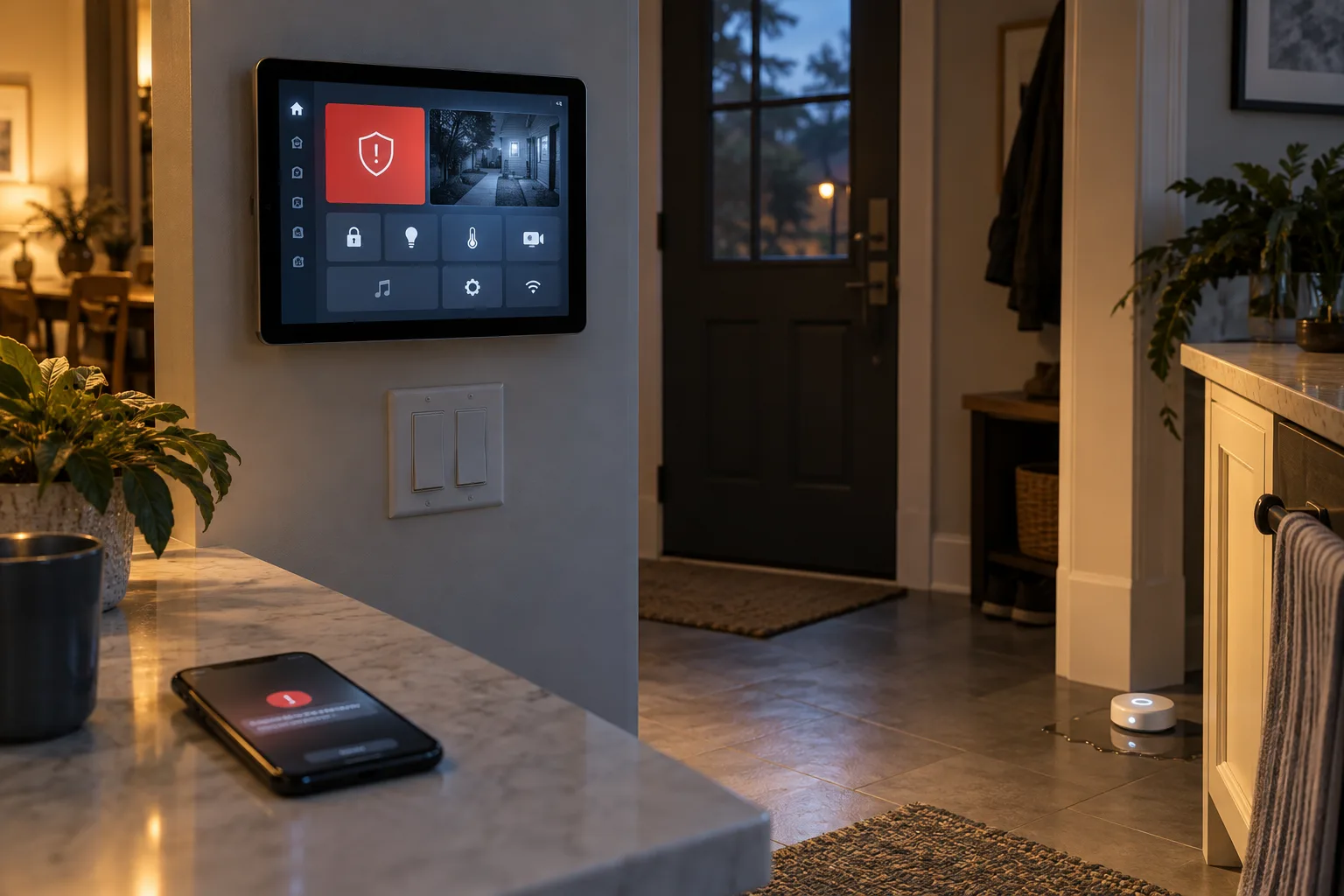
The release does not turn Home Assistant into a certified alarm system, and it does not solve unreliable sensors, muted phones, or poor network design. It does give household alerts a more visible place. The sensible response is not to put every device on the front page. It is to decide which conditions deserve interruption, which belong in a quiet maintenance list, and which need a physical backup independent of the smart-home controller.
This is the useful angle in 2026.10: treat the dashboard as the beginning of a response plan, not as a wall of status tiles.
What changed in 2026.10
Home Assistant’s October 7 release notes say that alerts configured for the Security dashboard, such as a door left open or a smoke detector going off, can now appear on the Home dashboard. The change closes a familiar gap between configuration and daily use. A person may have built a careful security page, but the household normally opens the default Home view.
The distinction is important. The new presentation does not make every binary sensor an alert. It surfaces alerts that you have already configured. The underlying condition, sensor quality, notification route, and automation logic still determine whether the warning is accurate and useful.
The release also includes unrelated changes, including separate battery discharge information in the Energy dashboard and additional dashboard controls. Those are useful, but they should not be confused with the security-alert change. A visible alert is not proof that the device is healthy, that the notification was delivered, or that somebody acknowledged it.
For a first pass, open the Home dashboard after upgrading and look for active alerts. If one appears, ask four questions:
- What exact condition created it?
- Who is expected to respond?
- What is the safest immediate action?
- How will the household know that the problem is resolved?
If the answer to any of those is unclear, the alert needs redesign before more devices are added.
An alert is a state, not a single notification
Home Assistant’s Alert integration is designed for conditions that remain important until they are fixed or acknowledged. Its documented states distinguish between an idle alert, an active alert, and an active condition that has been acknowledged. It can repeat notifications at configured intervals and can send a completion message when the condition clears.
That model is better for a garage door that remains open than for a brief motion event. A motion sensor may produce an event that is worth logging or using in an automation, but it usually should not behave like a persistent safety problem. Confusing events with states is one of the fastest ways to create notification fatigue.
A useful rule is:
Use an alert for a condition that requires a person to make a decision or restore a safe state. Use a notification for an event that is informative, time-sensitive, or already handled by another automation.
Examples of conditions that often deserve a persistent alert include a water-leak sensor reporting water, a freezer remaining above a chosen temperature for long enough to matter, a garage door left open overnight, a critical smoke-alarm fault, or a security door that is open while the home is marked away.
Examples that usually need different treatment include a light turning on, a person arriving home, a motion event in a busy hallway, or a battery that briefly reports an implausible value. Those can still feed automations, logs, or a lower-priority maintenance view.
The distinction also protects against an uncomfortable failure mode: if everything is urgent, the household learns that the red banner means “probably nothing.” A quiet, repeated alert should be reserved for conditions whose cost increases while they remain unresolved.
Start with a small alert inventory
Before editing YAML or buying new sensors, list the household conditions that can cause real harm, material loss, or a time-sensitive problem. Keep the inventory physical and specific. “Security” is too broad; “back door open while nobody is home” is actionable.
A practical inventory can include:
| Condition | Why it matters | First response | Backup |
|---|---|---|---|
| Water detected near a washing machine | Damage can increase quickly | Inspect the leak and isolate the appliance if safe | A standalone leak alarm |
| Freezer temperature remains high | Food may spoil before the problem is noticed | Check power, door seal, and compressor status | A separate temperature alarm |
| Exterior door open in Away mode | The home may be unsecured | Verify the door and occupants | Physical lock and household check |
| Garage door open overnight | Access and weather exposure | Close it after confirming nobody needs it open | Manual wall control and safety sensor |
| Smoke or carbon-monoxide alarm event | Life safety | Follow the alarm manufacturer’s emergency procedure | Certified, maintained alarms |
| Hub or sensor unavailable | The automation may be blind | Check the device and network | Manual checks and independent alarms |
The final row is easy to omit. A system that can tell you about a leak only when its hub, radio coordinator, network, power supply, and notification path all work is useful, but it is not a complete safety layer. Home Assistant’s own security guidance recommends protecting the installation, especially when it is reachable from outside the home network. That is a separate concern from whether the dashboard is convenient.
Do not connect a smart-home alert to a dangerous physical action merely because the software can control it. Closing a valve, unlocking a door, switching a heater, or disabling equipment can have consequences that a sensor cannot fully understand. Begin with notification and human verification. Add automatic control only when the device is designed for that use and the failure modes are understood.
Make the main dashboard a triage surface
The main Home dashboard should answer “what needs attention now?” It should not reproduce every entity in the house.
A restrained layout can use three areas:
- Active safety and household alerts.
- Current state needed for a quick decision.
- A link to deeper diagnostics and history.
The first area might show an open exterior door, detected water, a smoke-alarm state, or a freezer that has remained warm beyond a delay. The second might show whether the home is occupied, whether the hub is online, and the last update time of a critical sensor. The third can lead to the Security dashboard, device pages, logs, and automation traces.
This arrangement reduces the temptation to add a tile for every battery, contact sensor, and integration warning. Those are important, but they belong in maintenance work. The main dashboard is a decision surface, not an inventory export.
The new 2026.10 behavior makes this distinction more visible because an active Security dashboard alert can now appear in the place people already use. That is helpful when the alert list is curated. It is distracting when the list is a dumping ground for every low battery and transient connectivity fault.
Use names that describe the condition in household language. “Back door open while away” is better than “binary_sensor.contact_07.” Include the location and, when relevant, the duration. A person should not have to remember which sensor name belongs to which room while deciding whether to wake another household member.
Delays are part of the safety design
Many household conditions need a delay before they become an alert. A freezer door may be open while groceries are being loaded. A garage door may be open while somebody is working. A motion sensor may be active because a pet is moving through a room. Immediate warnings for all of these create noise.
The delay should match the consequence, not a generic preference. A water sensor designed to detect a leak may justify an immediate notification. A garage door may need a short grace period. A freezer temperature alert may require the temperature to stay high for long enough to distinguish a door opening from a failed appliance.
Home Assistant’s Alert integration supports repeat intervals and can use a sequence of delays rather than one constant interval. Its documentation also describes an acknowledgement state: a person can silence the repeated reminder while the condition is still present. That feature is useful, but acknowledgement must not be treated as resolution. Acknowledging “garage open” means someone saw it; it does not mean the garage is secure.
A sensible cadence might be:
- Immediate first message for a likely leak or life-safety event.
- A short delay for a door or garage condition where a normal activity is plausible.
- Repeated reminders while the condition remains active.
- A clear “resolved” message when the sensor returns to normal.
- A maintenance review if the alert is acknowledged repeatedly without the underlying condition being fixed.
Do not use a long delay to conceal an unreliable sensor. If the sensor chatters, drops offline, or reports impossible values, fix that problem separately. A delayed bad signal is still a bad signal.
Notifications need a delivery plan
A dashboard alert helps only when somebody opens the dashboard. A time-sensitive condition usually needs a notification route as well. Home Assistant supports notification integrations, and its companion documentation supports actionable notifications with buttons that send an event back to Home Assistant.
That makes it possible to design a message around a response rather than a vague alarm. For example, a garage notification might offer “Open dashboard” and “Mark seen,” while a door alert might link to the relevant camera view. An action should not silently perform a risky operation just because it is convenient. A button that unlocks a door or turns off an alarm deserves authentication and careful handling.
The delivery chain has several independent failure points:
- The sensor may be offline or have a depleted battery.
- The hub may be unavailable.
- The home network may be down.
- The phone may have notifications disabled or be in a focus mode.
- The notification provider may be delayed.
- A household member may not be the person who is currently responsible.
- The message may be too ambiguous to act on.
Test the chain deliberately. Trigger a harmless test condition, verify the dashboard, confirm the phone receives the message, check that an action works, and then restore the test state. Do this on each phone that is supposed to receive a critical notification. A notification that was configured months ago is not evidence that it still works today.
Use a named notify target where possible. Home Assistant’s notification documentation warns that the generic notify.notify target is shorthand for the first notify action it can find, which can make delivery less obvious as a setup grows. Explicit targets make the automation easier to audit and reduce surprises after devices or integrations are added.
For critical alerts, avoid relying on one person’s phone. Decide whether the right design is a second household device, a shared notification service, a local siren, or a manual check. That choice depends on the condition and the household. A phone notification is not a substitute for a certified smoke or carbon-monoxide alarm.
Actionable notifications need guardrails
Buttons are powerful because they shorten the path from seeing a problem to responding. They are also a source of accidental actions.
Home Assistant’s companion documentation notes that notification actions are delivered as events and that automations can run more than once. It recommends designing action identifiers carefully so that one notification does not accidentally trigger logic intended for another. The documentation also calls out the need to consider what happens when a notification is cleared or when the app is unavailable.
That has a practical implication: “acknowledge” and “fix” should be separate actions. Acknowledge means “someone saw this.” Fix means “the physical condition has been corrected.” If the alert is silenced by a button, keep the underlying state visible in the dashboard and preserve a path to the device history.
For an alert involving access control, require more friction. A notification that opens a camera view is generally lower risk than one that unlocks an entrance. If an action can change who is allowed into the home, authentication, a short validity window, and a visible confirmation are reasonable safeguards. Never make a phone notification the only protection against an unsafe physical state.
Use unique action identifiers when an automation can send multiple related notifications. Keep the action handler narrow: verify the expected context, check that the condition still exists, and refuse to perform an action when the relevant sensor has become unavailable. A stale notification should not become a command with a different meaning several minutes later.
Design for unavailable sensors
A smart-home dashboard can make a healthy system look reassuring while hiding blind spots. Every critical alert should have a corresponding question: what happens when the sensor stops reporting?
The answer does not need to be another alarm for every device. It does need a maintenance signal. A door sensor that has not checked in for days should not appear equivalent to a closed door. A water sensor with a dead battery should not be treated as proof that the floor is dry. A smoke-alarm integration that loses its connection should be shown as unavailable, not quietly normal.
This is where the main dashboard and the maintenance view work together. Put the active hazard on the main dashboard. Put stale-data and battery conditions in a clearly labeled health section, with enough visibility that they are not forgotten. For a small home, a weekly review may be sufficient. For a large installation, group devices by consequence and set a repair workflow.
Avoid hiding unavailable entities with templates that convert unknown values into “off.” That can make an automation look clean while removing the distinction between safe, false, and unknown. In any alert that protects property or people, unknown should remain visibly different from normal.
Radio and network design matter as well. A Thread, Zigbee, Wi-Fi, or Z-Wave sensor can fail because of distance, interference, battery behavior, a coordinator problem, or a router change. Adding a second dashboard tile does not improve the link. Test critical sensors from their installed locations, not only on a workbench next to the hub.
Keep life-safety devices independent
Home Assistant can integrate with smoke detectors and other safety equipment, but the controller should be an additional information layer, not the only line of defense. Use approved, maintained alarms appropriate to the jurisdiction and the building. Follow the manufacturer’s placement, testing, battery, and replacement guidance.
A smart-home automation may tell you which room reported an event, repeat a message to phones, or activate lighting to help people find an exit. It should not encourage anyone to delay evacuation while troubleshooting an app. If a certified alarm sounds, follow the emergency procedure first.
The same principle applies to electrical and heating equipment. Do not turn a dashboard alert into a mains-wiring project. Installing, modifying, or bypassing protection around fixed electrical equipment should be left to a qualified professional. A smart plug is not automatically suitable for a heater, boiler, appliance, or high-load motor simply because its label includes a wattage figure. The load type, duty cycle, enclosure, local code, and failure mode all matter.
Home automation is excellent at reporting context. It is not a replacement for a smoke alarm, a carbon-monoxide alarm, a properly installed shutoff, a mechanical safety interlock, or a person who knows the household emergency plan.
A practical setup sequence for 2026.10
If you already run Home Assistant, make this a short maintenance project.
First, update through your normal supported process and read the 2026.10 release notes for breaking changes that affect your installation. Do not combine a security-alert redesign with several unrelated migrations unless you can test each change.
Next, open the Security dashboard and write down the alerts that are genuinely actionable. Remove or redesign entries that have no clear owner, no useful response, or no reliable source. Then open the main Home dashboard and check how the active alerts appear there. Give each one a human-readable name and verify its location.
For each critical condition, test the real sensor at the installed location. Confirm that the alert starts, appears on the main dashboard, sends the expected notification, repeats according to the intended cadence, and clears after the physical condition is restored. If you use acknowledgement, confirm that acknowledgement does not erase the underlying state.
Then test the failure path. Temporarily disconnect or otherwise simulate an unavailable sensor only if the test is safe and reversible. Check that the dashboard distinguishes unavailable from normal. Verify that the household still has an independent safety mechanism for fire, carbon monoxide, and other life-safety risks.
Finally, document ownership. A note such as “the person who receives this notification checks the back door” is better than an assumption. If several people share the home, agree on what “seen,” “acknowledged,” and “resolved” mean. If nobody can respond to an alert, change the design instead of sending more messages.
A compact example of the underlying pattern is enough to illustrate the idea:
alert:
  garage_open:
    name: "Garage door is still open"
    entity_id: binary_sensor.garage_door
    state: "on"
    repeat:
      - 15
      - 30
      - 60
    can_acknowledge: true
    skip_first: true
    notifiers:
      - household_phone
The exact entity, notifier, timing, and condition must match the installation. Do not paste this example unchanged into a live system. The important design choices are that the condition is persistent, the first reminder is delayed to allow normal activity, repeats become less frequent, and the notification target is explicit.
What to review after a week
An alert system should be judged by behavior, not by how tidy the configuration looks. After several days, review which alerts fired, how often they repeated, whether anybody acted, and whether any were acknowledged without a fix.
Three outcomes are useful:
- The alert was rare, accurate, and led to a clear response.
- The alert was technically correct but poorly timed or too vague.
- The alert was noisy, duplicated another warning, or depended on a sensor nobody maintains.
Keep the first, refine the second, and remove or redesign the third. A smaller set of trusted alerts is more valuable than complete coverage that trains everyone to ignore the dashboard.
Also review whether the new main-dashboard visibility changes behavior. Does the household actually see the warning? Does it appear on a wall tablet that is often asleep? Are phones used more than the dashboard? Does a notification point to enough context to make a decision? If the answer is no, the interface change has exposed a workflow problem that another sensor will not solve.
Home Assistant 2026.10 gives active security alerts a better chance of being noticed. The durable improvement comes from matching each alert to a real condition, a real owner, a tested delivery path, and an independent fallback where the stakes are high. That is how a dashboard becomes useful during an ordinary busy day instead of becoming another screen full of warnings.
Sources and further reading
- Home Assistant 2026.10 release notes — what changed in the October release, including active Security dashboard alerts appearing on the Home dashboard.
- Home Assistant Alert integration — persistent alert states, acknowledgement, repeat intervals, and completion messages.
- Home Assistant actionable notifications — buttons, event handling, action identifiers, and platform considerations.
- Home Assistant automation triggers — the difference between a trigger event and conditions that remain true.
- Home Assistant notification action — explicit notification targets and the behavior of the generic notify action.
- Securing your Home Assistant — account and remote-access security guidance.
- Home Assistant 2026.10 community discussion — community reaction and implementation discussion around the release.
Related articles
Home Assistant 2026.10 Adds Easier AI Connections: The Security Checks to Make First
Home Assistant 2026.10 makes its MCP connection easier to discover and configure. That convenience also raises a practical question: which parts of your home should an AI client be allowed to see or control?

UBTECH’s Liuzhou Factory Puts Humanoid Robotics’ Manufacturing Problem on the Clock
UBTECH has started production at a Liuzhou factory designed for more than 10,000 industrial humanoid robots a year. The important question is no longer whether a robot can be demonstrated, but whether capacity can become dependable output and useful work.

Home Assistant 2026.10 упрощает подключение ИИ: что проверить в безопасности прежде всего
Обновление Home Assistant 2026.10 упрощает подключение клиентов ИИ через MCP. Но удобная настройка не отменяет главного вопроса: какие устройства умного дома действительно должны быть видны внешнему приложению и доступны для управления?
Home Assistant 2026.10 facilita las conexiones con IA: comprobaciones de seguridad que conviene hacer primero
Home Assistant 2026.10 simplifica la conexión MCP con aplicaciones de IA, pero esa comodidad exige revisar los permisos. Antes de activarla, decide qué dispositivos puede ver o controlar el cliente y cómo revocar el acceso.
Comments
Sign in to comment.
No comments yet.