Home Assistant 2026.9’s Matter Map Is Most Useful Before You Buy Another Thread Device
Home Assistant 2026.9 adds a Matter network map that can expose weak links, missing border-router paths, and Wi-Fi assumptions. Here is what it can tell you, what it cannot, and how to use it before expanding a Thread setup.
Home Assistant 2026.9 adds a network map for Matter, including Matter devices that communicate over Thread. The feature arrives at a useful moment: many homes now have a mixture of Matter accessories, vendor hubs, Wi-Fi access points, and Thread border routers, but the setup screen still makes the whole arrangement look simpler than it is.
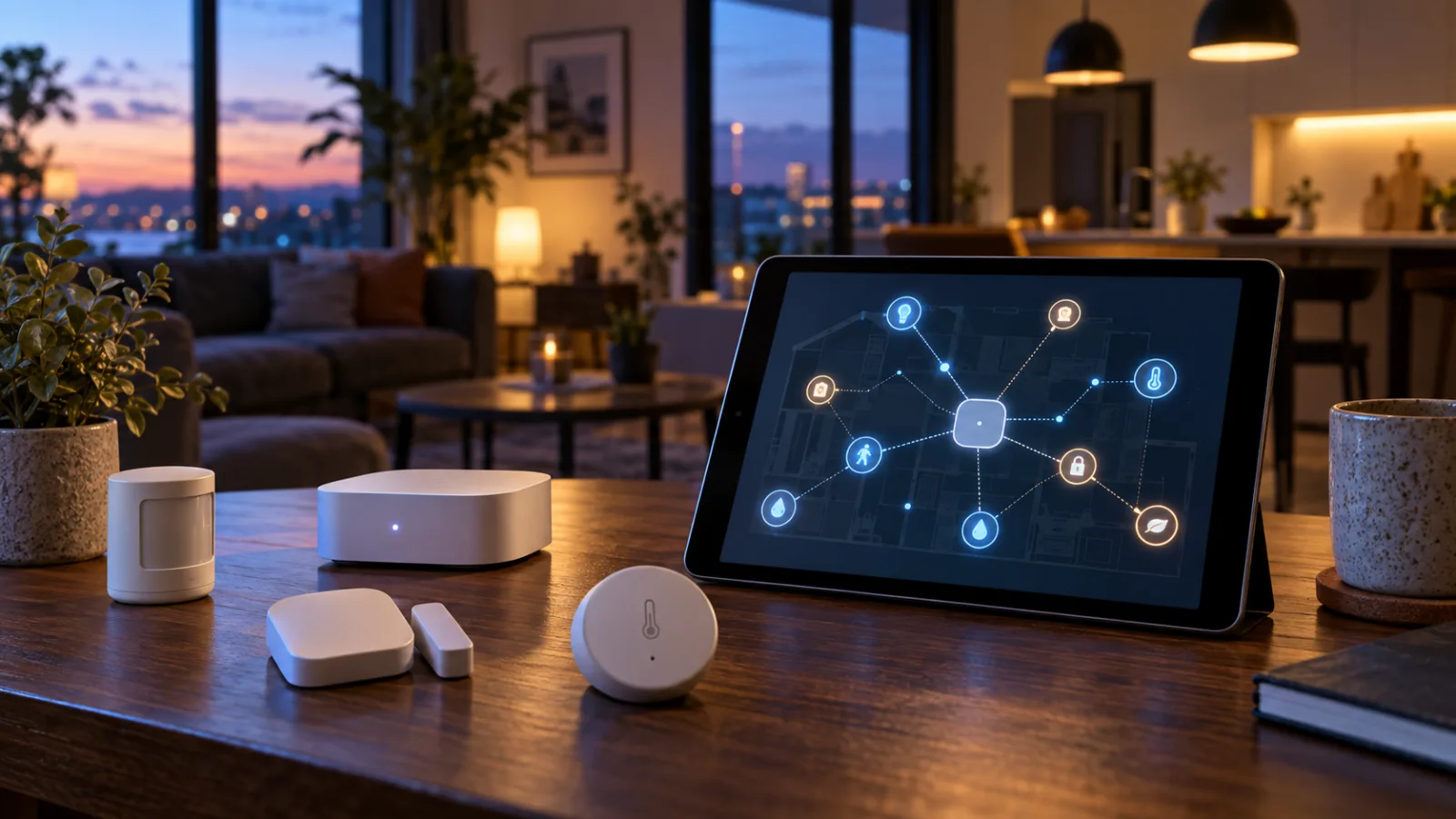
A Matter label tells you how an accessory is controlled. It does not tell you whether the accessory uses Wi-Fi or Thread, which Thread network it joined, which border router provides the path back to your local network, or whether your router allows the IPv6 and multicast traffic that the system needs. A Thread logo alone does not even guarantee Matter compatibility.
The new map does not turn Home Assistant into a universal network-monitoring tool. It cannot repair a poor radio location, merge unrelated Thread networks by itself, or prove that a vendor’s cloud service is unnecessary. It does give owners a better place to start when a sensor is slow, a thermostat disappears, or a newly purchased device will not commission.
The practical advice is simple: open the map before adding more devices. Use it to identify the shape of the network you already have, then decide whether the next purchase should be a device, a border router, a better access-point position, or no purchase at all.
What Home Assistant 2026.9 actually changes
Home Assistant’s September 2026 release places a Matter network map inside the Matter panel. The project says the view shows the devices in the Matter network, the transports they use, and the paths between them. Thread and Wi-Fi connections are distinguished, while the displayed names are intended to be more recognizable than raw serial numbers or internal identifiers.
For Thread devices, the map can show the relationships between routers, border routers, and end devices. A powered Thread device may forward traffic for other devices; a sleepy battery device normally does not. That distinction matters because adding a battery sensor does not generally strengthen the mesh in the same way as adding a mains-powered router-capable device.
The release also makes the Matter map part of a broader diagnostic direction in Home Assistant. Zigbee, Z-Wave, Bluetooth, and other connectivity areas already expose different kinds of network information. Matter had some of the data in its own server interface, but it was easy for ordinary users to miss. Bringing a map into the main interface makes the topology visible at the point where a homeowner is already looking for an explanation.
The feature is not a promise that every map will be complete. Home Assistant’s own documentation warns that Thread information depends on the networks and border routers visible to the installation, the credentials it has received, and the underlying local network. A border router can be discoverable without Home Assistant having the credentials needed to use or manage that Thread network.
That limitation is not a minor technical footnote. It is the reason a map can look empty or incomplete even when a phone, Apple Home, Google Home, or another controller appears to know that a Thread network exists.
Matter, Thread, and the border router are different things
The most common source of confusion is treating Matter and Thread as competing alternatives. They sit at different layers.
Matter is an application and control standard. It defines how compatible devices expose functions such as switching, dimming, temperature measurement, locking, or motion detection. Thread is a low-power IPv6 mesh network that can carry Matter traffic. Wi-Fi and Ethernet can also carry Matter traffic.
A Matter-over-Wi-Fi plug joins the home network like another Wi-Fi client. A Matter-over-Thread door sensor joins a Thread mesh instead. The two accessories may appear together in a controller, but their radio paths are different.
A Thread border router provides the bridge between the Thread mesh and the home’s IP network. The Thread Group describes the role as forwarding traffic between the low-power mesh and the rest of the network; it does not need to be a proprietary hub for a particular brand. In practice, the function may be present in a smart speaker, display, streaming device, router, lighting product, or a dedicated radio attached to a local controller.
This is why a new Matter device can still require additional planning. The device may be interoperable at the control layer while depending on a specific Thread network and a nearby border router during commissioning. Home Assistant’s Matter documentation lists examples such as a Nest Hub, HomePod mini, and Home Assistant hardware paired with the OpenThread Border Router application, but the exact supported combinations vary by product and software version.
The purchase checklist should therefore contain four separate questions:
- Does the product support Matter, or only Thread with a vendor-specific protocol?
- Is it Matter over Thread, Matter over Wi-Fi, or another transport?
- Which Thread network will it join?
- What border router will provide its path to the rest of the home?
The answers are more useful than the word “Matter” printed on the box.
Why the map matters in an ordinary home
Thread is designed to be a mesh, so a device’s location can affect more than that device. A powered router-capable accessory may provide a useful forwarding point, while a battery-powered end device usually optimizes for low energy use and sleeps between check-ins. If the only practical route to a distant sensor is weak or indirect, the symptoms may appear as delayed state changes, missed automations, or a device that works near the controller but not after installation.
A map can reveal whether the problem is plausibly local to one accessory or structural across the network. If several devices depend on one edge router, moving or removing that device may affect more than one room. If a device is attached to a different Thread network from the one Home Assistant expects, adding another sensor will not solve the underlying split. If the Matter device is on Wi-Fi and the map shows a poor access-point path, changing Thread hardware would be the wrong response.
The visual view is also useful for avoiding a common upgrade mistake: buying more end devices in the hope that the network will become stronger. A larger collection of sleepy sensors can increase the number of things to manage without adding meaningful routing capacity. The right intervention may be a mains-powered device in a sensible location, a border router placed closer to the affected area, or a Wi-Fi and IPv6 configuration change.
None of this means that the strongest-looking map guarantees perfect performance. Radio conditions vary with walls, appliances, neighboring networks, device firmware, and the time of day. Treat the map as evidence about topology, not as a laboratory measurement of every packet.
Read the map as a troubleshooting sequence
When a Matter-over-Thread accessory misbehaves, start with the accessory’s transport and role. Confirm that it is actually using Thread. A device shown as Matter may instead be connected over Wi-Fi, and that leads to a different diagnosis. Then check whether it is a sleepy end device, a router-capable end device, or another role. A battery sensor that responds slowly may be operating normally; a powered thermostat that repeatedly vanishes deserves a closer look.
Next, look for the nearest visible path toward a border router. The useful question is not “How many Thread devices do I own?” but “What route does this device have back to the IP network?” A distant sensor relying on a single weak-looking connection is a stronger candidate for placement or coverage work than a sensor that sits in a dense, well-connected part of the mesh.
After that, compare the map with the physical home. If the supposed nearby router is behind a television, inside a cabinet, or at the far end of a crowded room, the software view may be showing a technically valid route that is still vulnerable in practice. Radio hardware should not be treated like an Ethernet switch. Orientation, materials, and interference can matter.
Finally, repeat the check after one change. Move one border router, reposition one powered accessory, or correct one network setting, then give the mesh time to settle. Changing several devices at once makes it difficult to know which action helped and can create a new commissioning problem while the original one is still being investigated.
The most important warning: one home may contain several Thread networks
Home Assistant’s Thread documentation describes a situation that surprises many owners: an installation can discover Apple, Google, and Home Assistant border routers while those routers belong to separate Thread networks with different credentials. Seeing all of them in a list does not mean that every Thread device can roam across one shared mesh.
Separate networks can coexist on the same Wi-Fi and in the same house. Their names may be unfamiliar, and a controller may know that a network exists without knowing its credentials. Devices commissioned onto one network do not automatically use the routing capacity of another.
This is the point at which a neat map can be misleading if it is treated as a complete inventory. Home Assistant may show the Matter devices it controls while a vendor’s border router remains outside the visible path, or a community report may describe a map that does not show all expected border routers. The absence of a node should prompt a credentials and discovery check, not an immediate conclusion that the radio is broken.
Before creating yet another Thread network, decide which existing network should be preferred. Home Assistant documents procedures for importing credentials from an existing Google or Apple network and for joining a Home Assistant border router to that network. The exact process depends on the phone platform, hardware, and controller combination. It is worth following the current documentation for the specific setup rather than copying instructions from an older forum post.
A conservative household rule is to keep the number of Thread networks small and intentional. If Apple Home is already the reliable home for the Thread mesh and Home Assistant only needs to control the devices, sharing the Matter devices to Home Assistant may be less disruptive than moving the radio network. If Home Assistant is meant to be the primary local controller and has compatible Thread hardware, consolidating around it may make sense. The correct choice depends on which platform must continue working when another app or cloud service is unavailable.
Do not confuse a Matter fabric with a Thread network
Matter supports multi-admin operation. In plain language, a device can be shared with more than one Matter controller, such as Apple Home, Google Home, Amazon Alexa, SmartThings, or Home Assistant, depending on the product and setup. That sharing is not the same thing as creating multiple Thread meshes.
A device can remain on one Thread network while being made available to multiple Matter controllers. This is generally preferable to commissioning the same physical accessory into unrelated radio networks simply because several apps are installed. The controller relationship and the radio transport should be considered separately.
Home Assistant’s Matter documentation exposes the concept through device information and fabric management. Removing a controller from a device is not necessarily the same as deleting the device from every ecosystem, and deleting or resetting hardware can have consequences for automations elsewhere. Before removing a fabric, record which automations, voice assistants, dashboards, and household members depend on it.
This distinction also explains why a device can still appear in one platform after it is removed from another. The physical device, its Matter fabrics, and its Thread network membership are related but not identical records. A reset intended to fix one layer can disturb the others.
Where Wi-Fi, IPv6, and multicast enter the story
Thread devices are low-power IPv6 devices, but the path from a local controller to the Thread mesh still depends on the home network. Home Assistant’s documentation calls out IPv6 forwarding, multicast discovery, and mDNS as practical requirements. Routers, mesh Wi-Fi systems, containers, and virtual machines can each interfere with those mechanisms.
This produces a particularly frustrating failure pattern: a device commissions successfully, then becomes unreliable; a border router appears in discovery but cannot be used; or a device works from one controller but not another. The Thread radio may be fine. The problem may be that multicast discovery is filtered between wireless and wired segments, that IPv6 is disabled on a container host, or that a mesh system is applying client-isolation or multicast-suppression settings.
Do not change firewall rules casually, especially on a network that also carries cameras, locks, or work devices. The safer approach is to identify the specific requirement in the documentation for the controller and installation type, make the smallest relevant change, and test from a known client. If the Home Assistant instance runs in a container or virtual machine, confirm that the host and guest have the IPv6 behavior required by the Matter and Thread services.
A Matter map can help identify that the problem lies beyond the end device, but it cannot replace a check of the router and host configuration. The map is a view of what the controller knows. It is not a packet capture, a radio survey, or proof that every discovery advertisement crossed every network boundary.
Thread channel changes are not a casual first fix
Thread shares the 2.4 GHz band with Wi-Fi and Bluetooth. Home Assistant’s Thread documentation notes that Thread channels can overlap with common 2.4 GHz Wi-Fi channels and describes channels 25 and 26 as possible choices in environments with heavy Wi-Fi traffic. That does not make channel 26 a universal answer.
Changing a Thread channel affects an existing mesh. Devices need time to learn the new channel and transition, and communication can be temporarily disrupted. The documentation specifically advises against restarting the border router or making more changes while a scheduled switch is pending.
For a new installation, channel planning before commissioning is easier than repairing a large network later. For an existing installation, first establish that interference is the likely cause. Repeated channel-access failures, poor behavior in a particular physical location, or a clear relationship with busy Wi-Fi conditions is stronger evidence than a single offline notification.
If a home has a crowded 2.4 GHz environment, also consider the placement and configuration of Wi-Fi access points. A Thread change cannot fix a badly positioned access point, and a Wi-Fi change cannot fix a device that joined the wrong Thread network. The transport shown in the map should determine which branch of troubleshooting you follow.
What the map cannot tell you
A visual topology is valuable, but it has boundaries. It cannot tell you whether a vendor will continue supporting a cloud account, whether a future firmware update will introduce a regression, or whether a battery is nearing the end of its useful life. It cannot certify that an accessory is safe to install near water or suitable for a particular electrical load.
It may also omit infrastructure that is discoverable but not fully integrated. The current Home Assistant community includes reports from users whose Apple or other border routers were visible in Thread configuration but not represented in the Matter map as expected. Community reports are useful signals, but they are not a substitute for the project’s current release notes and documentation.
The map also does not eliminate the need to check device firmware and Matter feature support. Matter’s common data model does not guarantee that every controller exposes every feature in the same way. Optional capabilities, firmware update support, and vendor-specific behavior remain part of the ownership experience. Home Assistant notes, for example, that Matter over-the-air updates are optional and that some Thread devices behind Apple border routers have specific update limitations in its current documentation.
In other words, the map answers a narrow but important question: what network path does this controller currently understand? It does not answer every question about reliability, privacy, compatibility, or long-term ownership.
A sensible buying rule for the next Thread device
If the existing network is healthy and the new accessory solves a real household problem, buy the device after checking its transport, firmware support, controller compatibility, and return policy. If the existing map shows a clear coverage or network-ownership issue, fix that first.
For a battery sensor, prioritize the location and the device’s documented behavior over the assumption that another sensor will strengthen the mesh. For a powered plug, thermostat, blind controller, or lighting device, check whether it is router-capable and whether its intended location can improve the network. Do not buy a powered device solely for routing without confirming that the product’s role and firmware support that function.
For a new border router, identify which Thread network it will join and whether the controller can import or share the necessary credentials. A second border router from another ecosystem may provide redundancy, but it can also create another separate network. More logos on the box do not automatically mean one larger mesh.
For a Matter-over-Wi-Fi product, evaluate the access point, VLAN, multicast, and IPv6 behavior instead. Thread hardware is not a universal cure for a Wi-Fi discovery problem.
For a home that already works, the least risky upgrade may be documentation: record the preferred Thread network, border-router models, Matter fabrics, controller backups, and the physical locations of powered routing devices. That information is more useful during a failure than a shelf full of unconfigured accessories.
A practical diagnostic checklist
Use this order when a Matter accessory is unreliable or refuses to commission:
- Identify the transport: Matter over Thread or Matter over Wi-Fi.
- Confirm that the phone and controller are on the expected local network during commissioning.
- Check the device’s Thread role and whether it is battery-powered.
- Open the Matter map and look for the route toward a visible border router.
- Check the Thread configuration page for multiple networks and missing credentials.
- Confirm that the preferred network is actually the one you intend to use.
- Inspect router, IPv6, multicast, and mDNS behavior if the local path is incomplete.
- Check firmware and controller support before resetting the device.
- Change one physical or software variable at a time.
- Keep a manual control path for locks, heating, lighting, and other essential functions.
The last item remains important even in a well-designed local smart home. A sensor map can show why an automation failed, but it does not help if the only way to unlock a door or control heating is through an untested chain of software.
The larger lesson for Matter buyers
Matter has reduced some of the risk of choosing a device from a different brand, but interoperability does not remove network architecture. The consumer still has to choose a transport, a controller, a Thread network when relevant, and a recovery path when something changes.
Home Assistant 2026.9 makes that architecture easier to inspect. Its Matter map is most valuable as a decision tool: it can stop you from buying another sensor when the actual fault is a missing credential, an isolated border router, an overloaded 2.4 GHz environment, or a broken IPv6 path.
That is a modest feature with a practical payoff. Smart-home reliability improves when the owner can see the boundary between the device, the radio mesh, the local IP network, and the controller. Before expanding a Thread installation, find that boundary in your own home. Then spend money only on the part that is actually weak.
Related articles
When Your Smart Home Misbehaves, Home Assistant 2026.9 Can Show Its Work
The latest release makes automation failures, Matter routes and remote-login activity easier to investigate. Here is what the new evidence can reveal—and what it still cannot solve for you.
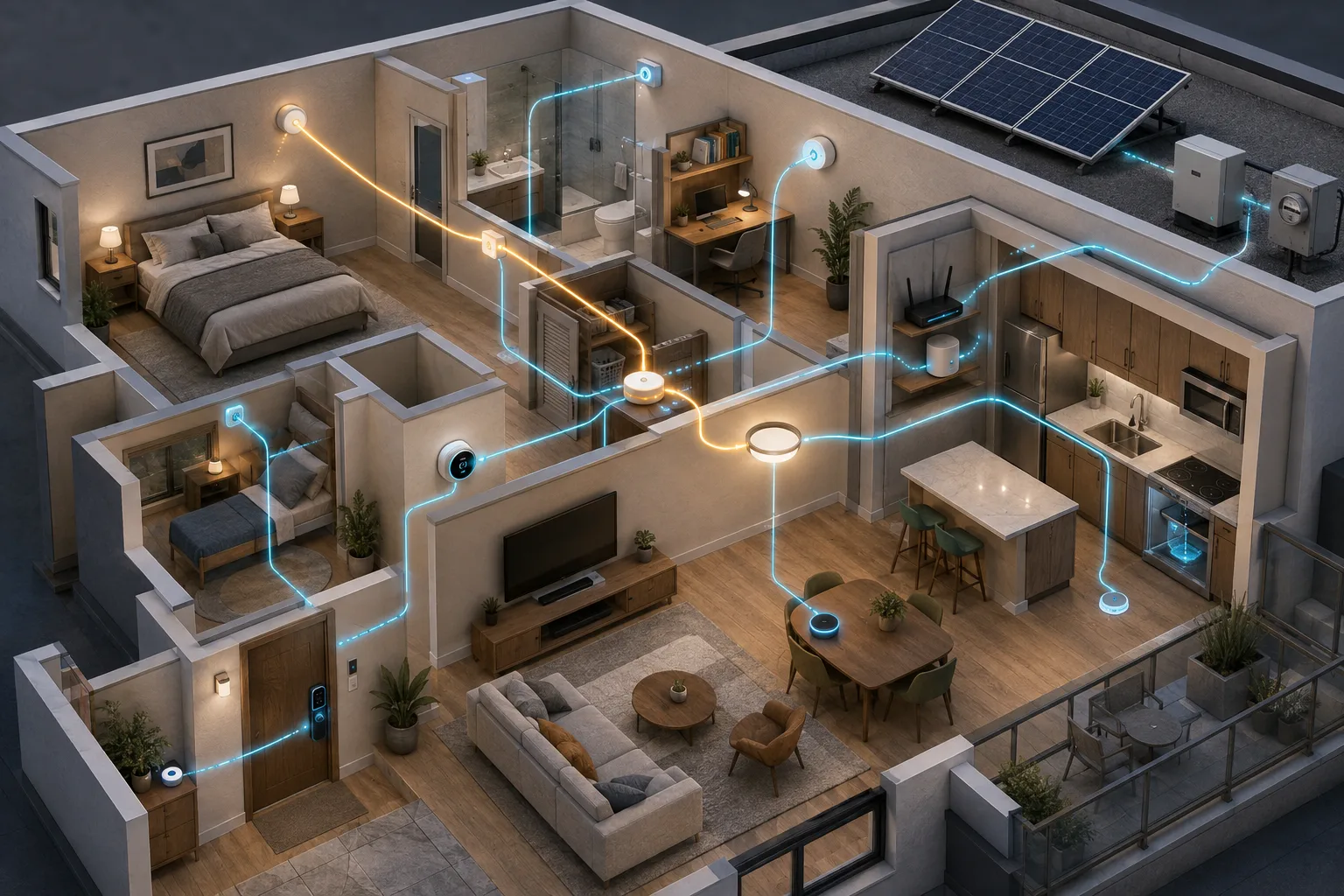
Shelly Wall Display as a Matter Controller: Useful Upgrade, Not a Hub Replacement for Every Home
Shelly's Wall Display firmware 2.8.0 makes some panels Matter controllers and Matter devices. The useful part is local room control; the catch is Thread, wiring, and platform expectations.
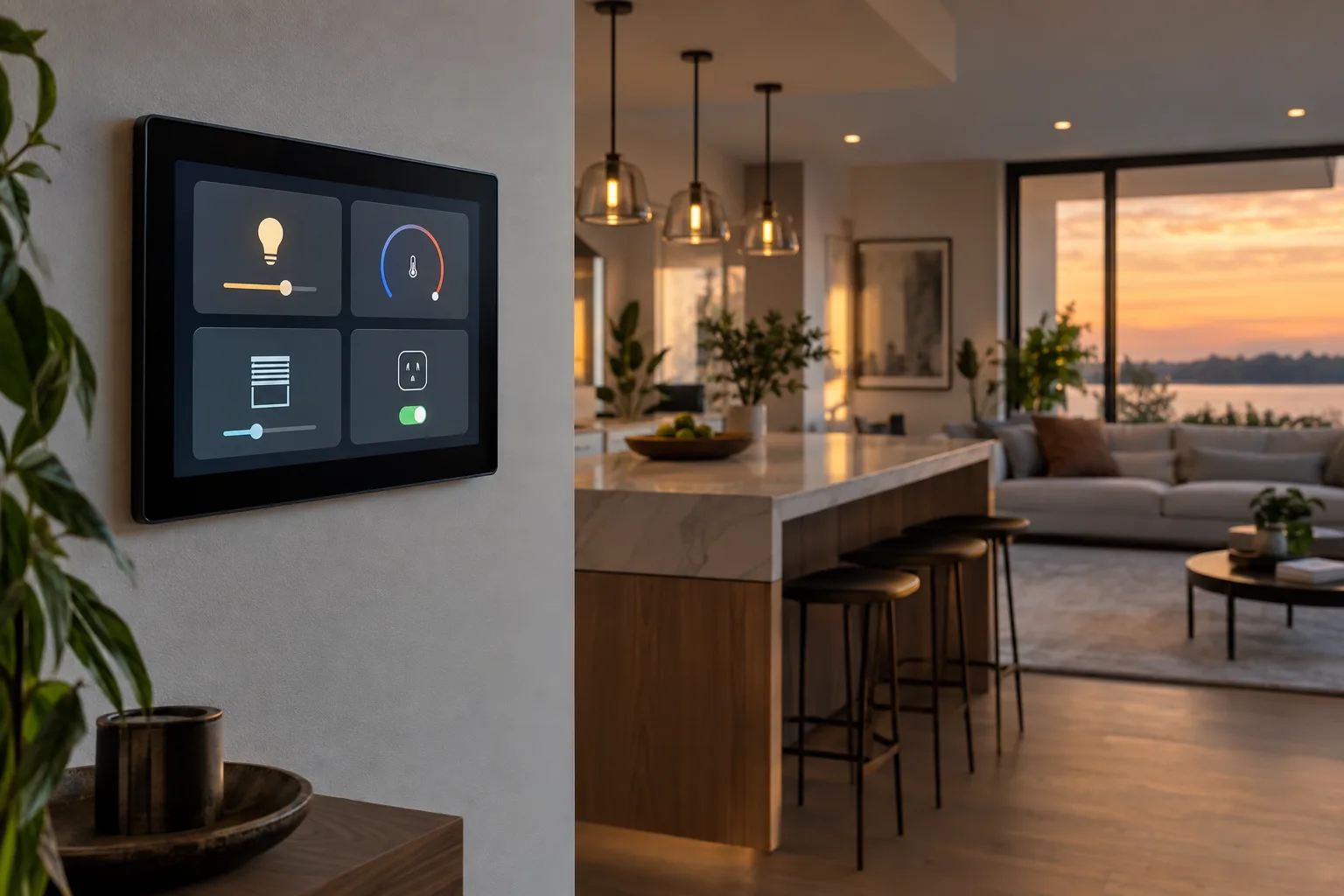
IFA 2026’s Local AI Home Hubs: What They Replace, What They Don’t, and Who Should Wait
IFA 2026 has made local AI the smart-home pitch of the moment. Here is how to separate a useful local camera and automation hub from an expensive pre-order, and how to test whether it fits the home you already have.


Drones did not kill the tank; they changed the robotics around it
Combined Resolve and Aurora 26 show why small drones, operators and fast feedback loops now matter as much as heavy machines.

Comments
Sign in to comment.
No comments yet.