Your smart home needs a backup before it needs another sensor
A Home Assistant debate exposed a boring but serious risk: many smart homes depend on one device, one disk, or one missing encryption key.
The most useful smart-home upgrade this weekend is probably not a new sensor. It is a backup you have actually tested.
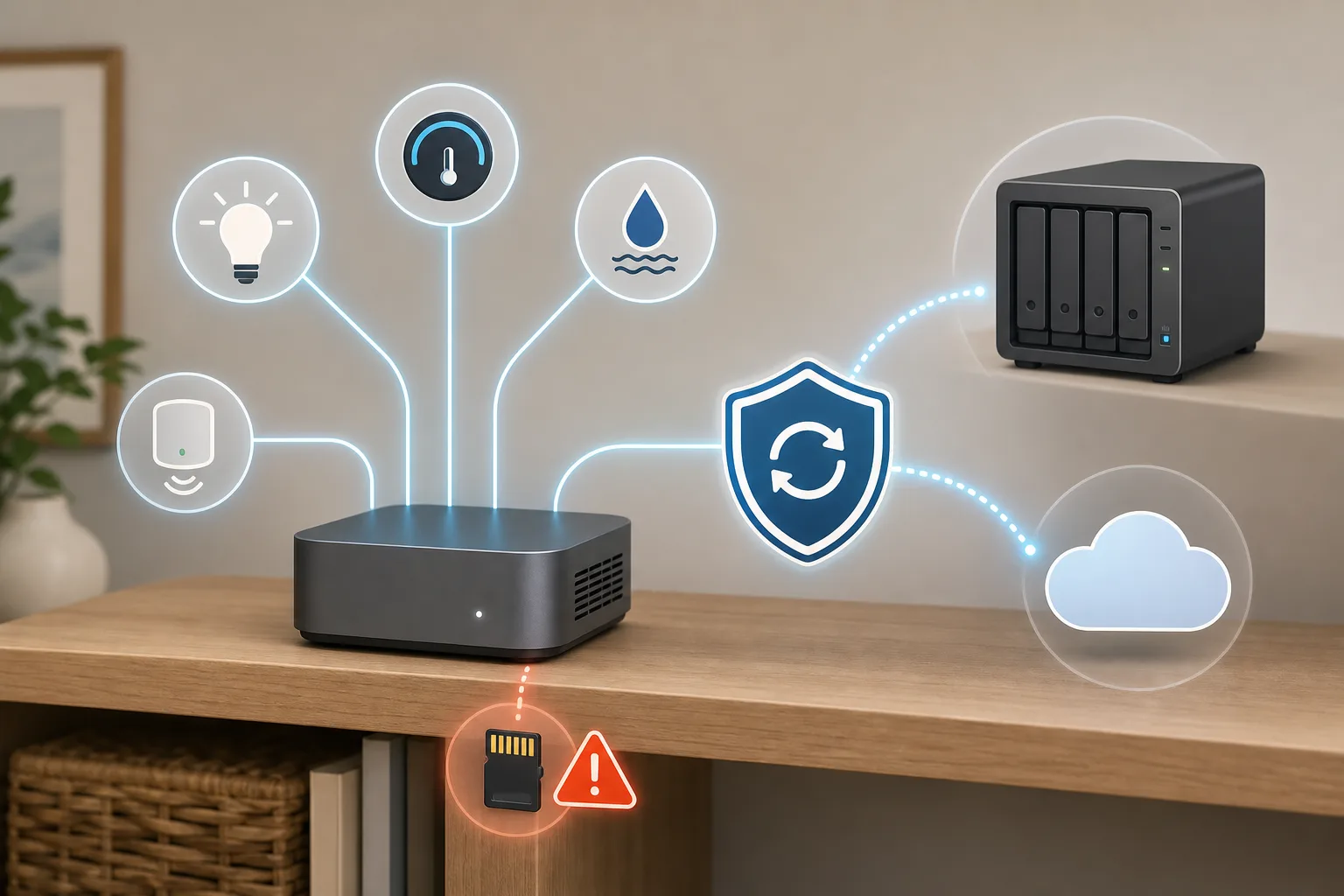
A fresh r/homeassistant thread made the point painfully well. The post claimed that out of roughly 650,000 active Home Assistant installations, about 165,000 did not have the Backup integration configured, and asked people to stop postponing backups before they end up re-pairing hundreds of devices years later. The exact number needs careful reading. Home Assistant Analytics is opt-in, the public active-installation count moves over time, and people can have Proxmox, NAS or Git backups that the Backup integration does not see.
Still, the warning is right. A smart home without a restore plan is not reliable. It is just lucky.
Home Assistant users know this better than most because their systems are often local, powerful and personal. Lights, heating, leak sensors, Zigbee and Z-Wave networks, dashboards, Node-RED flows, ESPHome devices, HACS custom integrations and years of entity names may live on one SD card, one mini PC, one SSD or one forgotten encryption key. When that device fails, the failure is not abstract. The hallway light stops behaving. The boiler schedule disappears. The leak sensor no longer warns anyone. The family stops caring that your dashboard was elegant.
The good news: Home Assistant has made backups much easier than they used to be. The bad news: easy does not mean configured, tested or recoverable.
What the Reddit argument got right
The Reddit post was blunt because the risk is boring until it becomes urgent. Nobody wants to spend a weekend rebuilding a home automation system by memory. Pairing devices again is the obvious pain, but it is not the only one. You may also need to recover secrets, add-on data, automations, dashboards, long-term statistics, media files, device names, network keys and integration credentials.
The comments added an important correction. Not using the built-in Backup integration does not prove someone has no backup. Some users run Home Assistant as a VM and rely on Proxmox Backup Server. Some copy snapshots to a second NAS. Some keep configuration in Git. Some schedule updates only after a fresh VM snapshot and roll back if a release breaks something.
That is a perfectly valid answer if it is real. The test is not whether a specific integration is enabled. The test is whether you can restore your smart home on different hardware without guessing.
If your answer is "I think so," you do not have a proven backup. You have optimism.
Why smart-home backups are different
Backing up a smart home is not the same as backing up a folder of photos. A Home Assistant setup is part server, part database, part radio network controller and part household memory.
The official Home Assistant backup documentation says a full backup includes config, share, add-ons, ssl and media directories. Backups are encrypted and stored as compressed .tar archives, locally by default in /backup. The documentation also warns users to keep backups regularly because Home Assistant setups often represent many hours of configuration and automation work.
That is the file side. The recovery side is messier.
If you use Zigbee or Z-Wave, the radio coordinator and network keys matter. If you use Matter or Thread, fabric and border-router details matter. If you use add-ons such as Zigbee2MQTT, Z-Wave JS, ESPHome, Mosquitto or Node-RED, their data matters. If you use HACS, custom integrations or hand-edited YAML, your restore plan has to include those too. Git may save your YAML, but it may not save the database, add-on data, secrets, dashboards or device pairing state.
That is why a smart-home backup should answer a practical question: if the machine dies tonight, what exactly do I install tomorrow, where is the backup, where is the key, and how long until the home works again?
What Home Assistant now provides
Home Assistant's Backup integration creates and restores backups across installation types. The official integration page says users no longer need to create their own automation just to make backups. Automatic backup can be set up from the UI, and the integration exposes actions such as backup.create and backup.create_automatic. It also provides an event entity and sensors for automatic-backup status, including last successful backup and failed backup reasons.
The common tasks documentation gives the everyday path: go to Settings, System, Backups, set up backups, download the emergency kit, define a schedule, choose retention, decide whether to back up before updates, and pick backup locations.
That emergency kit matters. Backups are encrypted by default. Encryption is good, but encryption without the key is a locked door you built yourself. If you store the backup in three places and the key in none, you have made a very durable problem.
Home Assistant's backup work also changed in 2025. The 2025.2 release notes describe the backup overhaul and the first integrations for storing backups in Google Drive and Microsoft OneDrive. The Google Drive integration documentation says it stores backups in a Home Assistant folder, with separate folders for different instances. That is much better than leaving the only copy on the same device that might fail.
A minimum plan for beginners
If you are new to Home Assistant, do not build a perfect enterprise backup system tonight. Build a boring one that works.
Open the backup settings and enable automatic backups. Daily is reasonable for many homes, especially if you change automations often. If your setup changes rarely, several times a week plus backups before updates may be enough. The point is to stop relying on memory.
Download the emergency kit and save it somewhere outside Home Assistant. A password manager is a good place. A printed sealed copy can make sense for households where someone else may need to recover the system.
Add at least one backup location outside the Home Assistant device. Google Drive, OneDrive, a NAS share or Home Assistant Cloud are all better than only keeping backups on the SD card or SSD running the system. Local-only backup protects you from a bad update. It does not protect you from a dead disk.
Turn on backup before updates if your installation supports it. Updates are not dangerous most of the time, but they are one of the moments when rollback saves real time.
Finally, set a notification for failed automatic backups. A backup job that silently stopped three months ago is just decoration.
A better plan for advanced users
If you run Home Assistant in Proxmox, on a NAS, in a VM or in a container, you may already be doing better than the built-in metric suggests. But advanced setups create their own false comfort.
A VM snapshot is excellent for fast rollback. It is not always enough for disaster recovery. If the host disk dies, where is the VM backup? If the NAS fails, is there an off-site copy? If your restore depends on a USB Zigbee coordinator path, have you documented it? If the new mini PC uses different device names, does your restore plan handle that?
A solid advanced plan usually has layers. Use VM or LXC snapshots for fast rollback. Copy backups to a second disk or NAS. Keep an off-site or cloud copy for fire, theft and hardware failure. Keep Git for text configuration history, but do not pretend Git is the whole backup. Keep the emergency kit and encryption key separate from the system it unlocks. Write down restore steps in a plain text file.
Then test it. Not necessarily on the production box. Restore to a spare VM, spare SSD or spare SD card. Check whether Home Assistant starts, whether add-ons appear, whether dashboards load and whether the radio integrations can see their coordinator configuration.
A backup you have never restored is a theory.
What people forget
The first forgotten item is the encryption key. The second is where the latest successful backup actually lives.
After that come the smart-home-specific pieces. secrets.yaml and credentials. Zigbee and Z-Wave network keys. Add-on data. Node-RED flows. ESPHome configurations. HACS and custom integrations. MQTT broker data. Media folder size. Recorder database size. External storage credentials. OAuth credentials for cloud backup locations.
Retention also matters. Keeping one backup is fragile. Keeping every backup forever can fill a disk and break future backups. Home Assistant's automatic backup flow lets you define retention. Use it. Seven daily backups may be fine for a small setup. A larger household may want a mix: several daily backups, a few weekly copies, and one monthly off-site copy.
Do not forget backup size. The Home Assistant documentation suggests checking database size and removing unused add-ons before backing up, especially before migrating hardware. A giant recorder database can make backup and restore slow at the exact moment you want the process to be boring.
Storage options, honestly
Only local backup is better than nothing. It protects against mistakes and some update failures. It does not protect against storage failure.
Google Drive and OneDrive are convenient because they get a copy out of the box. Check credentials, storage limits and whether the integration is still uploading successfully. OAuth can expire. Storage quotas can fill. Cloud backup is not magic.
A NAS is good if the Home Assistant box dies. It is less good if the house has a power event, theft or fire. A NAS is not off-site just because it is in a different room.
Proxmox Backup Server is excellent for VM-based setups. It can make restore fast and repeatable. You still need to know where the off-site copy is and how to restore USB/radio coordinator access.
Git is useful for seeing what changed and recovering text configuration. It is not a full smart-home restore plan.
The best answer is usually a mix: Home Assistant automatic backup, one local copy, one NAS or VM-level backup, one cloud or off-site copy, and a saved emergency kit.
Update discipline matters too
Backups are not only for dead hardware. They are for bad updates, broken custom integrations and your own experiments at midnight.
The Reddit comments show a mature pattern: some users update only during a planned window, take a backup first and wait for .3 or .4 releases if their home is too important for day-one changes. That may sound cautious, but smart-home reliability often comes from boring routines.
If your automations control heat, locks, leak alerts or lights used by other people, do not treat production Home Assistant like a playground. Try big changes when you have time to fix them. Keep a backup from before the change. Know how to roll back.
A 20-minute checklist
Tonight, do the simple version.
Open Home Assistant backup settings. Enable automatic backups. Download the emergency kit. Save it outside Home Assistant. Add one off-device backup location. Turn on backup before updates. Check that the latest backup completed successfully. Set a notification for failed backups. Download one backup manually and confirm you can find it without logging into Home Assistant.
This weekend, do the real test.
Write down your restore steps. Identify your Zigbee, Z-Wave, Matter, MQTT and ESPHome pieces. Confirm where secrets and add-on data are stored. Check backup size and retention. Try a restore on spare hardware or a spare VM if you can. If you cannot test a full restore, at least confirm the archive exists, the emergency key exists and the backup is not only on the device that would fail.
The smarter home answer
A smart home without a restore plan is not simpler. It is more fragile than a normal home because you have added software to basic routines without adding recovery.
The fix is not complicated. It is not glamorous either. Back up the system. Keep the key. Put a copy somewhere else. Test the restore before you need it.
The next sensor can wait. Your lights, heating and leak alerts will thank you more for a boring backup that works.
Related articles
AI cameras at home need house rules, not just better detection
New research on domestic workers shows why smart home cameras should be configured around privacy, guests and everyday trust, not only security alerts.
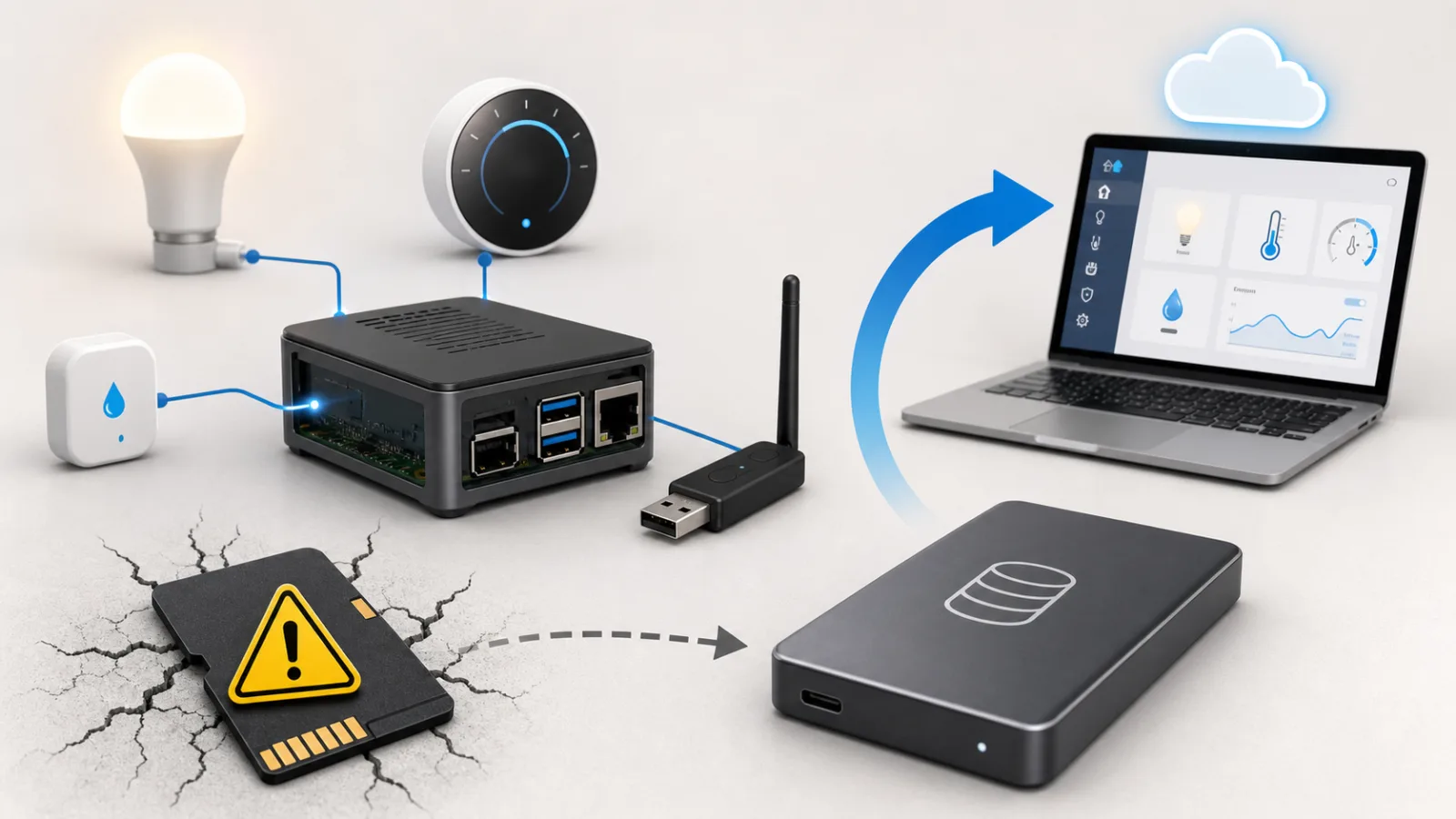
Home Assistant keeps failing? Start with the storage, not the dashboard
Raspberry Pi and Orange Pi smart-home setups often fail at the least glamorous layer: microSD cards, USB sticks, power supplies and missing backups. Here is how to move toward SSD, Data Disk or a mini PC without losing the house.
Will your smart home survive when the app disappears?
Wemo’s cloud shutdown is a practical warning for anyone buying smart plugs, bulbs, switches or appliances: the safest smart home is the one whose basic controls do not depend on one vendor server.
Smart home by subscription: why SmartThings users are worried about Home Assistant integrations
Samsung says ordinary SmartThings app users are not the target. The worry is what happens to Home Assistant, dashboards, scripts, PATs and Samsung-appliance data when API access becomes paid.
Comments
Sign in to comment.
No comments yet.