Home NAS boxes are becoming closed gadgets. Check this before buying one
A fresh NAS debate shows why buyers need to check RAM, networking, drive rules, M.2 support and backup plans before trusting a box with years of data.

A home NAS used to be the boring box you bought once and ignored for years. Put in drives, make a shared folder, point the family phones or laptops at it, and maybe run Plex if you felt adventurous.
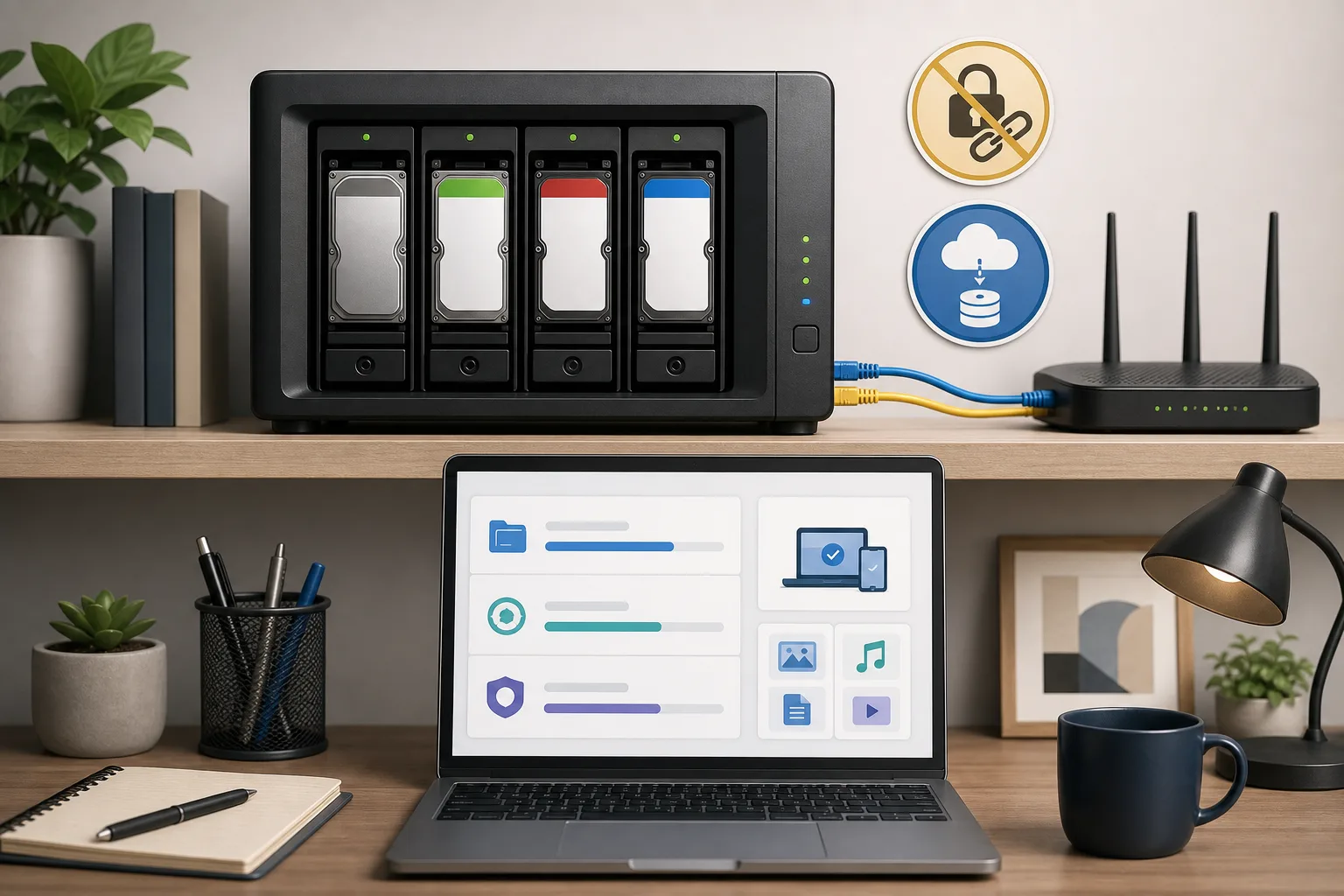
That version of the product still exists, but the buying decision has changed. A modern NAS is often a storage device, a small server, an app platform, a backup target, a camera recorder and a vendor ecosystem in one enclosure. That is why the recent argument around NAS design feels bigger than a complaint about one brand or one spec sheet.
The immediate trigger was a July 31 NAS Compares article titled "The 10 Ways NAS is Getting Enshitified" and the Hacker News discussion that followed on August 1. The HN thread had 194 points and 168 comments when checked. The complaints were familiar to anyone shopping for a NAS in 2026: soldered RAM, slow networking on multi-bay boxes, drive compatibility lists that feel like lock-in, restricted M.2 use, recycled hardware generations, expensive disks and software that wants more memory than old entry-level boxes were built to provide.
The interesting part is that the debate was not simple. Some users argued that a NAS should be a low-power storage appliance, not a miniature datacenter. Others answered that vendors themselves turned NAS boxes into home servers by adding Docker, VMs, photo apps, surveillance apps and media servers, then kept hardware restrictions that make those workloads frustrating.
Both sides are right enough to make buying one harder.
Why this is a gadget story, not just a storage story
For normal buyers, a NAS is no longer only about RAID levels. It is where family photos, phone backups, Time Machine archives, Jellyfin libraries, Home Assistant recordings, Immich photo libraries and small business files may live for years. It is also the device a non-technical partner may need to understand if the household tech person is unavailable.
That makes lock-in more painful than it looks on a spec sheet. If a laptop has soldered RAM, you can sell it and buy another one. If a NAS holds ten years of family media, a drive fails, the vendor changes a compatibility policy and the only clear path involves approved disks or a migration ritual, the product stops feeling like local ownership.
The promise of NAS is control. The worry is that some boxes are starting to copy the restrictions people were trying to escape from cloud services and smartphone ecosystems.
The real cost starts after the enclosure
The empty box is only the first bill. A four-bay NAS can look affordable until you price four NAS-grade hard drives, an extra spare, a UPS, faster networking, a switch, backup drives and some offsite storage. In the HN discussion, several users said the enclosure was not the painful part anymore. Drives were.
That changes the buying rule. Do not compare only enclosure prices. Compare a working system.
For a family archive, that means the NAS, two to four drives, a USB backup drive or another backup target, and a cloud or offsite copy for irreplaceable files. For a creator, it may mean 2.5GbE or 10GbE networking, more bays, cache or fast scratch storage, and a restore plan. For a homelab user, it may mean RAM, containers, VMs, snapshots and recovery from a failed boot device.
A cheap NAS with 1GbE, fixed memory and awkward drive rules can become expensive if it forces an early replacement. A more expensive box can be cheaper over five years if it accepts standard drives, has enough RAM, exposes standard networking and lets you recover data without a vendor account.
The Synology drive-policy lesson
Synology became the symbol of the lock-in argument, but the details matter. Tom's Hardware reported in April 2025 that Synology's policy for some newer consumer NAS systems limited full functionality and support for third-party hard drives. In October 2025, Tom's Hardware reported that DSM 7.3 walked back part of that policy for 2025 units, restoring third-party HDD and SSD support in some contexts.
Synology's own Knowledge Center now describes drive compatibility policies for systems starting from 2025 on DSM 7.3 and above. The FAQ says the policy varies by product series and drive type. It also says older systems are not affected retroactively. For DS Plus and desktop FS models, the visible table indicates more flexibility for not-listed HDDs and 2.5-inch SATA SSDs than the early controversy suggested. At the same time, the table still distinguishes compatible, not-listed and incompatible drives, and M.2 NVMe support remains narrower in important scenarios. Stricter rules also remain for several higher-end and rack-oriented series.
The fair reading is not "all Synology boxes are unusable." Many people still like Synology because DSM is polished, apps are accessible and setup is easier than a DIY server. The fair buyer warning is different: before buying any NAS, read the current compatibility policy for the exact model, drive type and DSM version you plan to use. Do not rely on a general impression from an older model.
Hardware lock-in is not only about drives
Drive lists are the obvious controversy. The quieter issues are just as important.
Soldered RAM is fine if the box is truly an appliance and the memory is enough for the life of the product. It is less fine if the marketing encourages containers, photo recognition, virtual machines and surveillance workloads. A NAS that cannot grow with software demands can age faster than its drive bays suggest.
Networking is another trap. A four-bay or six-bay NAS with only 1GbE can be acceptable for backups and light file sharing. It is a bad fit for 4K video editing, multi-user media work or fast local restores. If 2.5GbE or 10GbE requires a proprietary adapter, an expensive card or a model jump, include that in the real price.
M.2 slots also need careful reading. On some boxes, NVMe can be used as a storage pool. On others, it is mainly cache, migration support or a limited compatibility-list feature. A product page that says "M.2" is not enough. Check whether it can hold the data you actually want to put there.
Then there is the boot device. Some appliances use internal flash or fixed OS storage. That can make setup cleaner, but it may complicate repair if the boot media fails or if you want to run your own OS later.
NAS or home server?
This was the strongest split in the HN thread. One camp says NAS means network attached storage: a small, quiet device that shares disks reliably and does not need server-class expandability. The other camp says modern NAS vendors already sell server features, so users are right to expect standard RAM, better networking, real PCIe expansion and OS freedom.
The buying advice depends on which camp you are in.
If you want a family photo vault, Time Machine target and simple shared folder, a prebuilt NAS can still be the sane choice. Compact design, low idle power, mobile apps, vendor updates and clear alerts matter more than theoretical flexibility. The best NAS for that user is the one that gets backed up and understood.
If you want Plex transcoding, Home Assistant, Frigate, Immich, Nextcloud, Docker stacks, local AI experiments and VMs, you are shopping for a home server with attached storage. At that point, a mini PC plus DAS, an old workstation, a purpose-built DIY NAS, TrueNAS, Unraid or plain Linux may be a better fit. You gain standard parts and control, but you also inherit patching, monitoring, security and recovery work.
A DIY NAS is not automatically safer. It is only safer if you maintain it.
The checklist before you buy
Ask these questions before the drive trays seduce you.
Can you upgrade RAM? If not, is the installed memory enough for snapshots, media indexing, containers and the vendor's next few software releases?
Does the model have 2.5GbE or 10GbE built in? If not, what does the upgrade cost, and is it a standard PCIe card or a vendor part?
Are third-party HDDs and SSDs fully supported for new pools, replacement, migration, health reporting and support tickets? Check the official compatibility page for the exact model.
Can M.2 drives be storage, cache, both or neither? Are there compatibility-list restrictions?
What happens if the vendor cloud account disappears, the app store changes, or the company drops the model? Can you still access files over standard protocols?
How are alerts delivered? Email, push notification, local buzzer and dashboard warnings sound boring until a disk starts failing.
Can a non-technical family member recover files or replace a disk by following printed instructions?
What is the backup plan? RAID is availability, not backup. Snapshots are useful, but they are not an offsite copy. Theft, fire, ransomware, power damage and accidental deletion do not care how tidy your RAID array looks.
Which type of buyer should choose what
A family archive buyer should prioritize simple setup, clear alerts, automatic phone backup, external backup support and offsite copy. Do not overbuy a loud server if nobody will maintain it.
A photographer or video editor should start with networking and restore speed. Four fast drives behind 1GbE are like a sports car in a driveway. Look for 2.5GbE at minimum, 10GbE if large projects move daily, and a workflow that separates archive, working storage and backup.
A Plex or Jellyfin user should check transcoding needs before buying. Some low-power NAS boxes are fine for direct play and poor for heavy transcoding. A mini PC with a good iGPU plus separate storage may be better.
A Home Assistant or self-hosting user should treat the NAS as infrastructure. RAM, snapshots, container support, UPS integration and restore tests matter more than a glossy mobile app.
A small office should care about support, auditability, permissions, remote backup and replaceable parts. Drive policy matters here because downtime costs money.
A homelab user should probably compare prebuilt NAS prices against a DIY build. Standard RAM, ECC options, normal PCIe cards, OS choice and cheaper upgrades may outweigh the higher power draw and setup work.
What not to overreact to
Not every integrated design is hostile. Soldered memory can improve reliability and power use. A curated compatibility list can reduce support chaos. A simple OS can protect normal users from turning a storage appliance into an unpatched internet-facing mess.
The problem is when vendors sell flexibility in the marketing and remove it in the fine print.
A NAS can be closed and excellent if it is honest about being an appliance. It can be open and excellent if the buyer understands the maintenance burden. The bad product is the one that looks like local ownership but behaves like a walled garden after the disks are full.
Bottom line
A NAS is still one of the most useful devices you can put in a home or small office. Local storage matters more as cloud subscriptions get more expensive and phones produce larger photos and videos. But the old buying habit no longer works.
Do not ask only how many bays it has. Ask what drives it accepts, how it handles failure, whether the network is fast enough, whether memory can grow, whether M.2 means real storage, how backups leave the building and whether your data can be recovered without the vendor's blessing.
The boring box is still worth buying. You just have to make sure it will stay boring when something breaks.
Related articles
Before you buy a cheap TV stick, ask who else gets your internet
Some no-name streaming boxes are not just cheap gadgets. Recent KrebsOnSecurity and Bitsight research shows how a living-room streamer can become residential proxy and ad-fraud infrastructure.
Your smart TV app may have been someone else’s proxy node
LG says it will suspend webOS apps that keep residential proxy functionality. The bigger lesson is that a smart TV is an always-on computer in your home network.

Should You Buy a Smart TV in 2026 — or a Dumb Screen With a Box?
A practical buyer’s guide to smart TVs, privacy, ads, external streamers, monitors and the trade-offs behind today’s cheap big screens.

The DJ Booth Is a Network Now: What the PRO DJ LINK and rekordbox Vulnerability Really Means
A calm look at AlphaTheta’s PRO DJ LINK warning, why local network access still matters, and what DJs, venues and technicians should do before the next show.
Comments
Sign in to comment.
No comments yet.