Google’s Old Home and Nest Speakers Are Getting a Firmware Test: What Owners Should Check
Google is testing firmware 3.79.550760 for several older Home and Nest speakers. Here is what the build covers, who should wait, how to check eligibility, and how to test an updated speaker without putting essential routines at risk.
Google is testing firmware 3.79.550760 for several older Google Home and Nest speakers. The release is aimed at the original Google Home, Google Home Mini, Nest Mini, and Nest Audio, with notes covering audio and media streaming, volume behavior, setup and Wi-Fi connectivity, smart-home control, the Google Assistant entry experience, and general performance and stability.
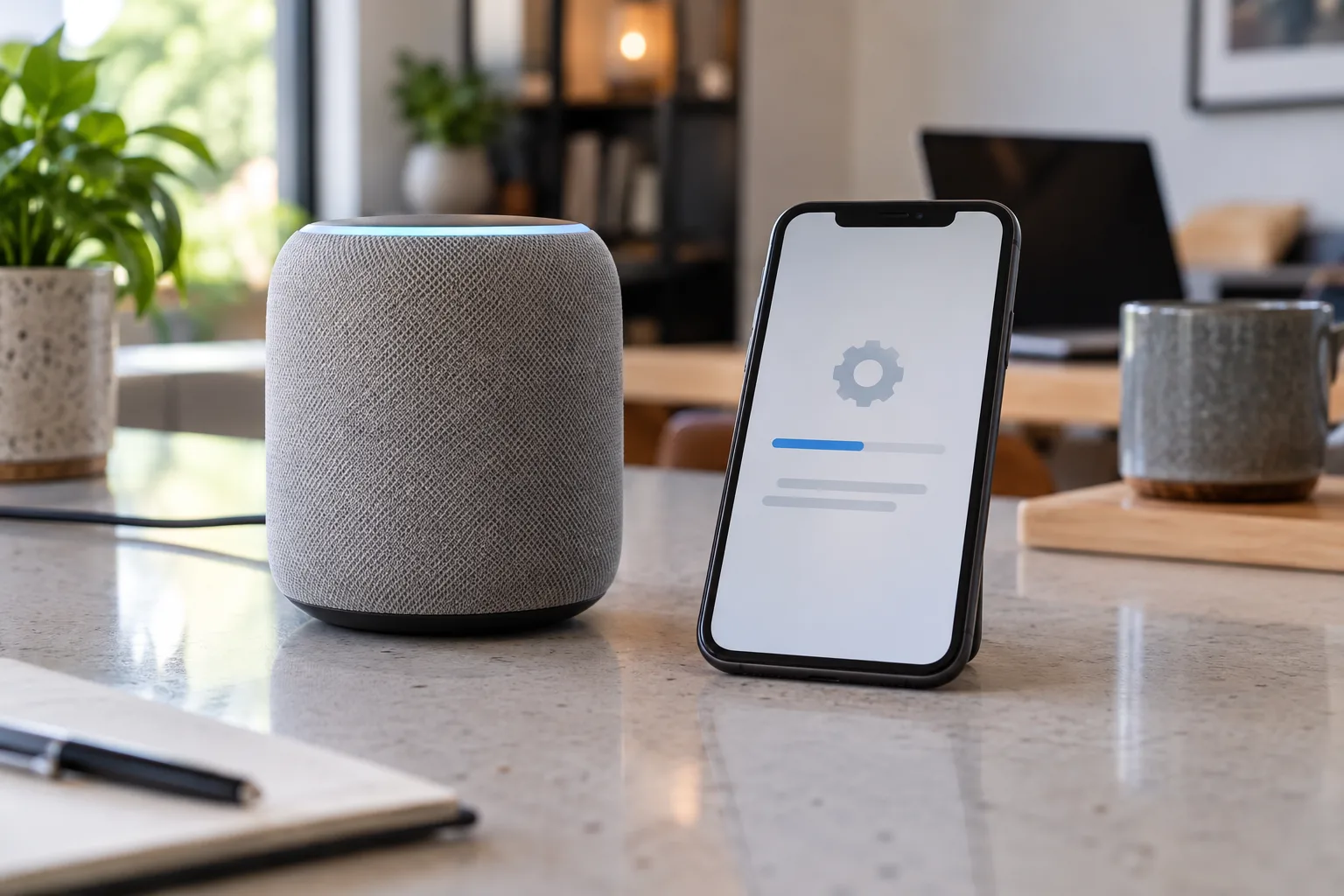
That is useful news for owners who have kept a small speaker in the kitchen, bedroom, hallway, or office for years. It is also easy to overread. This is a firmware test delivered through Google’s Preview Program, not a promise that every old speaker will gain every current Gemini feature, receive a new hardware capability, or remain supported indefinitely. Google has not published a detailed bug-by-bug changelog for the build, and the public production firmware pages may lag while the rollout is tested.
The practical advice is simple: do not replace a functioning speaker because a newer model exists, but do not put a Preview build on the speaker that the household depends on for alarms, routines, accessibility, or emergency-adjacent reminders without a fallback. First identify which device you own, record its current firmware and important routines, then decide whether early access is worth the uncertainty.
What Google is testing
The reported build number is 3.79.550760. Google’s Preview Program release information, reported by 9to5Google, lists five broad areas of improvement:
- audio and media streaming and volume behavior;
- device setup and connectivity, including Wi-Fi issues;
- the Google Assistant entry experience;
- smart-home control;
- overall performance and stability.
Those labels describe the areas Google is touching, not a guarantee of a particular result in a particular room. “Audio improvements” could mean fewer playback interruptions or better handling of volume commands; it does not establish that a speaker will sound better. “Smart-home control improvements” could reduce a software error when a speaker sends a command; it does not change what a connected light, plug, thermostat, or lock supports.
The wording around Google Assistant also needs care. Google has been moving its home voice experience toward Gemini for Home, and current Google Home release notes separately describe changes to Gemini conversations, weather units, and smart-display answers. The 3.79 firmware notes do not, by themselves, establish that every device in the test receives the same Gemini behavior or that the old speaker has the same capabilities as newer hardware.
The update is therefore best understood as maintenance with a wider scope than the usual “bug fixes and security improvements” line. It may make old speakers less irritating to use, but it is not a new product inside an old enclosure.
Which speakers are included
The devices identified in the firmware report are:
| Device | First-generation context | What to expect |
|---|---|---|
| Google Home | The original speaker launched in 2016 | Included in the current Preview test |
| Google Home Mini | The compact first-generation Mini from 2017 | Included in the current Preview test |
| Google Nest Mini | The second-generation compact speaker from 2019 | Included in the current Preview test |
| Google Nest Audio | The larger speaker released in 2020 | Included in the current Preview test |
The Google Home Max is not listed as part of this particular wider test. The 2026 Google Home Speaker is also a different product and is not evidence that the older models receive identical behavior. A news report may group the entire Home and Nest range together, but owners should check the exact model tile in the Google Home app before assuming eligibility.
The simplest way to distinguish a Nest Mini from a Google Home Mini is physical: the Nest Mini has a wall-mount notch on the back and a fabric-covered body with a more substantial base, while the older Home Mini is the smaller first-generation model. In the app, the device name and settings page are more reliable than memory. If a speaker has been renamed “Kitchen,” “Upstairs,” or “Speaker 2,” open its device information and record the model before changing any program settings.
Preview firmware is early access, not a repair button
Google describes the speaker Preview Program as an opt-in channel that receives firmware before broad release. Google says the program is not “beta” software in the conventional sense, but it also warns that preview firmware can affect how products work and that participants should report problems. That distinction matters less than the operational fact: the build reaches a smaller group first, and the company is still watching for issues.
A Preview enrollment does not instantly force a firmware version onto a speaker. Google’s support instructions say that eligible devices receive updates automatically, and the app can show whether a device is waiting for the next preview firmware or is already on a preview version. Google also notes that leaving the program does not immediately downgrade the device. A user who leaves waits for the next production firmware, which may take a week or two.
That delay changes the decision for a household that wants to “try it for an hour.” Preview participation should be treated as a reversible choice with a waiting period, not as a toggle that returns the speaker to yesterday’s software. If the device is part of a multi-room audio group or is used by several people, the cost of an unexpected behavior is higher than it is on an unused desk speaker.
The current build may also roll out gradually. A speaker can be eligible while another unit of the same model remains on the production version. Do not compare two rooms and conclude that one device is broken merely because its firmware number has not changed yet.
How to check your current firmware
Before enrolling, make a small record of the speaker’s present state. It takes only a few minutes and gives you something concrete to compare after the update.
- Open the Google Home app on the phone or tablet linked to the same Google account as the speaker.
- Open Home and All devices.
- Touch and hold the speaker’s tile.
- Tap Settings, then Device information.
- Under Technical information, find the Cast firmware version.
Google’s support documentation says speaker firmware is delivered over the air and that the speaker must be set up and connected to the internet to receive it. The version to watch for in this test is 3.79.550760, but the app may display the number in a longer device-specific format. Record the entire string, not just the first two groups.
While you are in the device page, note:
- whether the speaker belongs to a speaker group;
- which rooms or routines address it by name;
- whether media services such as Spotify, YouTube Music, or radio stations are used;
- whether it acts as the voice endpoint for lights, plugs, fans, or thermostats;
- whether household members depend on timers, reminders, broadcast messages, or alarms;
- whether the speaker is connected to the primary Wi-Fi network or a guest network.
This is not bureaucracy. It is a way to tell the difference between an update problem and a pre-existing problem. If a routine already fails before the update, a before-and-after test will otherwise produce a false diagnosis.
Should you join the Preview Program?
For most homes, waiting is the sensible default. Google says the firmware is expected to move toward broader release, and the improvements described are important but not a reason to accept avoidable risk on a mission-critical device.
Joining can make sense in three situations.
First, you have an older speaker that already has recurring audio, Wi-Fi, setup, or smart-home control problems, and you are willing to report results. In that case, early access may provide a useful fix before the production channel reaches you.
Second, the speaker is secondary. A bedroom unit that plays music and answers casual questions can be a reasonable test device if the kitchen speaker, doorbell chime, home-control panel, or accessibility setup remains on stable firmware.
Third, you are comfortable troubleshooting Google Home and can tolerate a delayed exit. You should know how to check firmware, remove and recreate a speaker group, reconnect Wi-Fi, and verify routines without assuming the update is at fault.
Wait if the speaker is the only way someone in the home controls lights or calls for help, if it is used for medication or wake-up reminders, if the household is already dealing with unreliable Wi-Fi, or if nobody has time to test the setup afterward. A firmware update cannot compensate for a network that is dropping packets, a saturated access point, or a routine built around a device that has been renamed.
The safest approach is to enroll one non-critical unit, leave the rest alone, and compare behavior for several days. Do not enroll every speaker at once merely because they share a model name.
What to test after the update
A short, repeatable checklist is more useful than a general impression that the speaker “feels better.”
Audio and media
Start a familiar radio station or playlist and let it play for at least 20 minutes. Test pause, resume, next, previous, and a direct volume command. If the speaker is part of a group, play the same source on the group and listen for dropouts or a unit falling out of sync.
Test the services the household actually uses. A Spotify command tells you little about a radio service that has been unreliable. If several family members use different accounts, test the account-switching path rather than assuming a general audio improvement fixes it.
The reported notes mention volume improvements, but that may refer to command handling rather than loudness or sound quality. Compare the same track at the same volume before and after the update if sound quality matters. Do not use a subjective change in a different room as proof of a firmware change.
Wi-Fi and setup
Check whether the speaker remains visible in the Google Home app after an overnight update. Ask it a simple question, start media, and control a nearby light. If any of those actions fail, check the phone’s Wi-Fi connection and the speaker’s network before resetting the device.
A speaker that can be discovered by the app but cannot complete a command may be experiencing a cloud-service or account issue rather than a radio problem. Conversely, a speaker that disappears from the network can have a local Wi-Fi issue. Keep those two failures separate when reporting feedback.
Do not change the router, rename the Wi-Fi network, and enroll in Preview on the same day. Multiple changes destroy your ability to identify the cause.
Smart-home control
Test one light, one plug, and one routine if those categories exist in the home. Include a device from another manufacturer, because a command that succeeds for a Google-branded device may not tell you whether third-party control improved.
For every test, check the physical result and the app state. A voice response such as “OK” is not proof that a light changed state. Watch the device, then open its tile and confirm that the reported state matches reality. This is especially important for plugs controlling appliances: the software state should never be treated as evidence that an appliance is electrically safe to leave unattended.
Avoid using the update as a reason to create new automations. First confirm that existing routines still run. New automation logic adds another variable and makes troubleshooting harder.
Timers, alarms, broadcasts, and reminders
Create a disposable timer and cancel it. Test a routine that is not safety-critical. If the speaker is used for alarms, verify the volume and wake behavior without relying on a single morning test.
Do not use a smart speaker as the sole smoke alarm, carbon-monoxide alarm, medical alert, or emergency communication path. Firmware maintenance can improve convenience, but it does not replace listed life-safety equipment or a phone-based contact plan.
Multi-room groups
Speaker groups are particularly useful for finding regressions because they depend on several devices and the network between them. Check group membership, start a short track, pause it from the app, resume it by voice, and remove one speaker from the group. If the group behaves strangely, test each speaker alone before resetting everything.
A group issue may be caused by one unit, one network segment, or a service account. Resetting all devices at once can turn a small problem into a complete setup job.
What the update does not prove
The firmware test does not prove that Google has committed to unlimited support for old hardware. A new build is evidence of support today, not a published lifetime guarantee.
It also does not prove that an older speaker will receive the full feature set of a 2026 Google Home Speaker. Hardware differences matter: microphones, processors, radios, memory, and audio components influence what a device can do. Cloud-side features may be shared across models, but they can also be limited by region, account, language, early-access status, or the device’s hardware.
Nor does it make the speaker local-first. A Google Home or Nest speaker remains part of a service-dependent ecosystem. The device needs network access for many functions, and Google’s own firmware instructions require an internet connection for over-the-air updates. If the household needs lighting or heating controls during an internet outage, build a separate local fallback rather than assuming a firmware release changes the platform’s dependency model.
Finally, the test does not validate every third-party integration. A smart-home command travels through several layers: voice recognition, account permissions, Google Home’s device model, the manufacturer’s integration, and the device itself. An update to the speaker can improve one layer while another remains unchanged.
Privacy and household controls still matter
The update is about firmware, but the device remains a microphone connected to a cloud account. Before enrolling, review which Google account owns the home, who can control devices, and whether guests can issue voice commands. If the home uses Gemini for Home or other early-access features, check the relevant activity and privacy settings separately from the firmware program.
Do not assume that joining the speaker Preview Program also enrolls the household in every Google Home app preview or Gemini experiment. Google documents these as separate programs. A firmware preview, the Google Home app’s Public Preview, and Gemini for Home early access can have different enrollment paths and different effects.
Households with children, renters, guests, or workers should also decide whether voice control is appropriate in every room. A speaker update may change reliability without changing who can issue a command. If a connected lock, garage door, heater, or appliance is voice-controlled, use the most restrictive permissions and confirmations the platform supports. Do not create a routine that defeats a physical safety control merely to make the device more convenient.
The right replacement decision
A new firmware test should not automatically trigger a purchase decision. If an older speaker still handles the tasks you need, its age alone is not a technical failure. Keep it, update it through the normal production channel, and replace it when it no longer receives needed security support, cannot perform required functions, or costs more time to maintain than it is worth.
Replace or supplement it when the limitation is hardware rather than software. Poor microphone pickup in a noisy room, inadequate volume, a missing display, or the need for a local control panel will not be solved by a firmware build. A small speaker may also be the wrong endpoint for a household that needs visual alerts or accessible physical controls.
The least disruptive upgrade is often to add a second endpoint rather than remove the old one. Keep the familiar speaker for timers and music, and put a newer device in the room where a display, better microphones, or a newer assistant experience matters. This avoids making the whole home depend on one migration.
If you are moving away from Google Home, document the devices and routines first. A firmware update is not the right moment to change platforms, rename every room, and re-pair every accessory. Make one controlled change at a time, preserve manual controls, and keep the old speaker available until the new arrangement has survived a normal week.
A practical decision for October 2026
Owners of the original Google Home, Home Mini, Nest Mini, or Nest Audio should check the firmware version now, but they do not need to chase 3.79.550760. The build is promising because it addresses the unglamorous problems that determine whether a smart speaker remains useful: playback, Wi-Fi, setup, command handling, and stability. Those are exactly the areas worth improving on hardware that many homes already own.
The responsible choice depends on the speaker’s role. Join the Preview Program on a spare or secondary unit if you want to test early and can report problems. Wait for production if the speaker is part of a critical household routine. Either way, keep a physical or app-based fallback for important controls, verify the device after it updates, and treat the update as maintenance—not as a reason to rebuild the smart home.
A ten-year-old speaker receiving meaningful software attention is a good outcome. It is also a reminder to judge smart-home hardware by the support and recovery plan around it, not only by the newest feature shown in an announcement.
Related articles
Do Not Build the Smart Home on One Cloud Speaker
Fresh Google Home problems are a reminder to design smart homes with voice as a convenience, local logic for important routines, and physical fallback for the things people use every day.
Your Nest Protect Is Expiring: How to Replace It Without Losing Whole-Home Fire Alerts
Google has stopped making Nest Protect, and many first-generation units are now reaching their ten-year expiry dates. Here is how to choose between First Alert’s SC5, conventional interconnected alarms, and a smart-home listener without weakening the safety system.
A smart home needs a local Plan B when Google Home goes quiet
The August Google Home and Nest outage was fixed, but it exposed a design problem many apartments and houses still have: basic controls often depend on a remote service. The practical response is not panic or a server rack, but a simple local fallback plan.
Before switching to Gemini for Home, treat it like a whole-home migration
Google’s smart-home AI assistant may make Nest speakers more useful, but the official no-return rule changes the risk. Check devices, people, routines, subscriptions and fallbacks before one click changes the voice layer of the whole home.
Comments
Sign in to comment.
No comments yet.