How to Set Up a GPS Tracker Using SMS Commands
Learn how GPS trackers are configured using SMS commands. This beginner-friendly guide explains the most common command types, the correct setup sequence, and common mistakes that prevent trackers from sending location data.

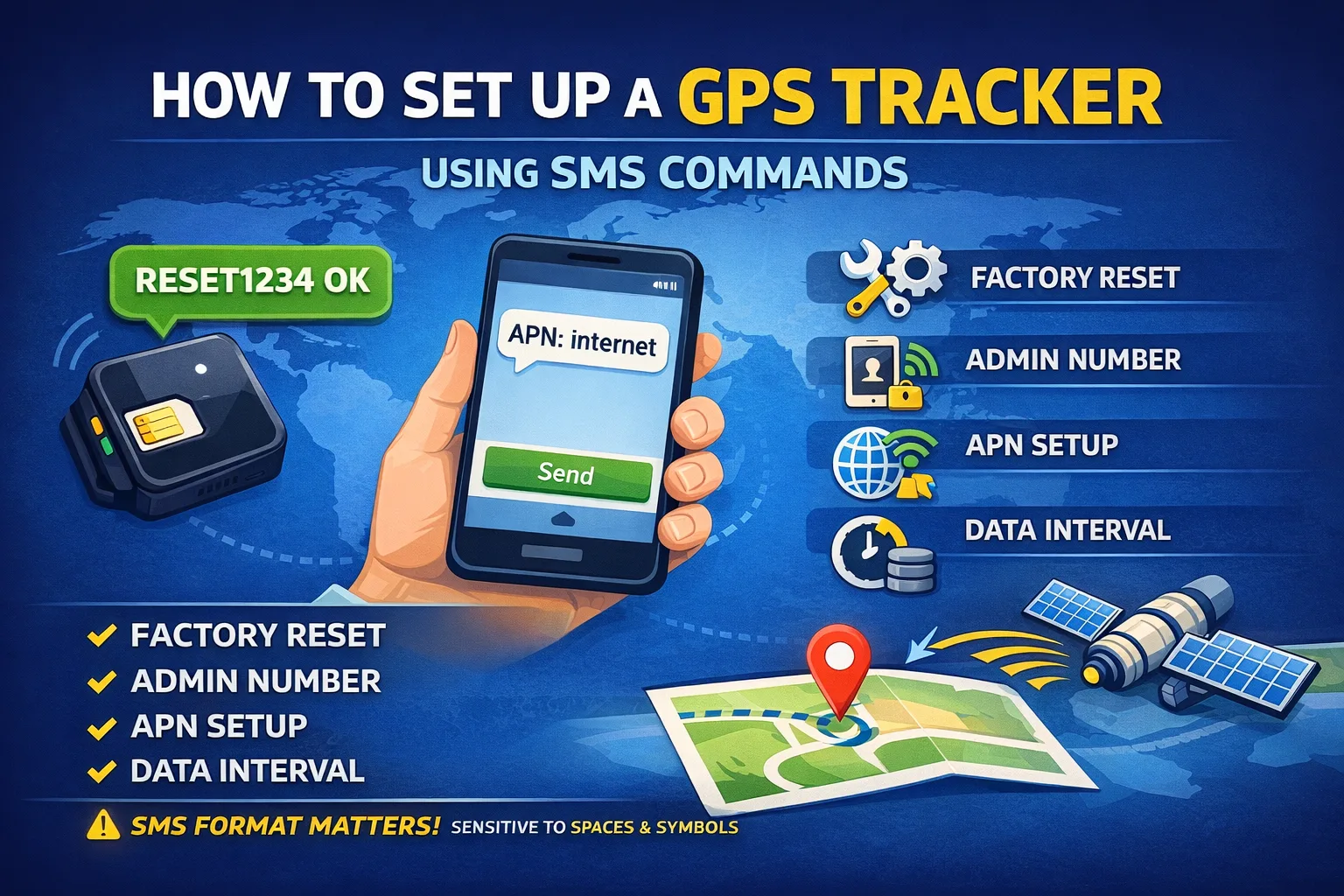
If you’ve added a GPS tracker to a monitoring platform but don’t see any data — the problem is often not the system.
In most cases, the device simply hasn’t been configured yet.
The key step that many users miss is setting up the tracker via SMS commands.
What Are SMS Commands?
SMS commands are the primary way to configure and control most GPS trackers.
In simple terms:
you send a text message to the SIM card inside the tracker, and the device executes the command.
📌 Think of it as a remote control — but via SMS.
How It Works
- A SIM card is inserted into the tracker
- You know the phone number of that SIM card
- You send an SMS with a command
- The tracker receives it
- In most cases, it replies with a confirmation (OK / ERROR / status)
📌 Important: SMS commands are very sensitive to format
(spaces, symbols, password — everything matters)
Types of SMS Commands
Commands vary depending on the device model, but the logic is almost always the same.
Here are the main types:
🔧 Factory Reset
Used when:
- the tracker is second-hand
- settings are unknown
- the device behaves unpredictably
📌 This is usually the best place to start.
📱 Admin Number Setup
Many trackers require you to set a “master” or “admin” phone number.
If you skip this step:
❌ the device may ignore your commands
🌐 APN Configuration (Internet Setup)
To send data to a server, the tracker needs mobile internet.
That’s why you must configure the APN (Access Point Name).
📌 APN depends on your mobile carrier — check their official website.
⏱ Data Transmission Interval
Defines how often the tracker sends location data.
Recommended:
- for setup → 10–30 seconds
- for regular use → depends on your needs (e.g. 1–5 minutes)
📌 Short interval = faster testing, but higher battery consumption
🔋 Power Saving Modes
Many trackers include smart modes such as:
- sleep mode
- no-movement shutdown
- event-based reporting (often called “alarm” modes)
Problem:
❌ the tracker appears offline
❌ no data is sent
📌 For initial setup, it’s best to disable these modes.
🌍 Server and Port Configuration
This is the most critical step.
Here you define:
- the tracking server
- the port
📌 Without this, the tracker will NOT appear in your monitoring system.
Recommended Setup Order
To avoid issues, follow this sequence:
- Factory reset
- Set admin number
- Configure APN
- Set data interval
- Disable power-saving modes
- Set server and port
📌 Wrong order often leads to a “non-working” tracker
How to Send SMS Commands Correctly
✔ Use a regular phone
✔ Make sure the SIM card is active
✔ Check balance and SMS capability
✔ Follow the exact command format
Common Mistakes
❌ Wrong APN
❌ No mobile internet on SIM
❌ Admin number not set
❌ Power-saving mode enabled
❌ Incorrect server or port
Key Takeaway
👉 Adding a tracker to a platform does NOT mean it’s configured
Until you send SMS commands:
- the device doesn’t know where to send data
- the system won’t receive any location updates
What’s Next
In the next articles, we’ll cover:
- where to find SMS commands
- what to do if your manual doesn’t include them
- how to type commands correctly
- real setup examples for popular tracker models
Follow to make sure you don’t miss practical guides 👇
Related articles
How to Set Up a GPS Tracker: From SIM Card to Your First Location on the Map
Learn how to set up a GPS tracker from start to finish. This complete guide walks you through SIM card preparation, SMS commands, APN settings, server and port configuration, testing, and connecting your device to LiveGPSTracks for real-time GPS monitoring.
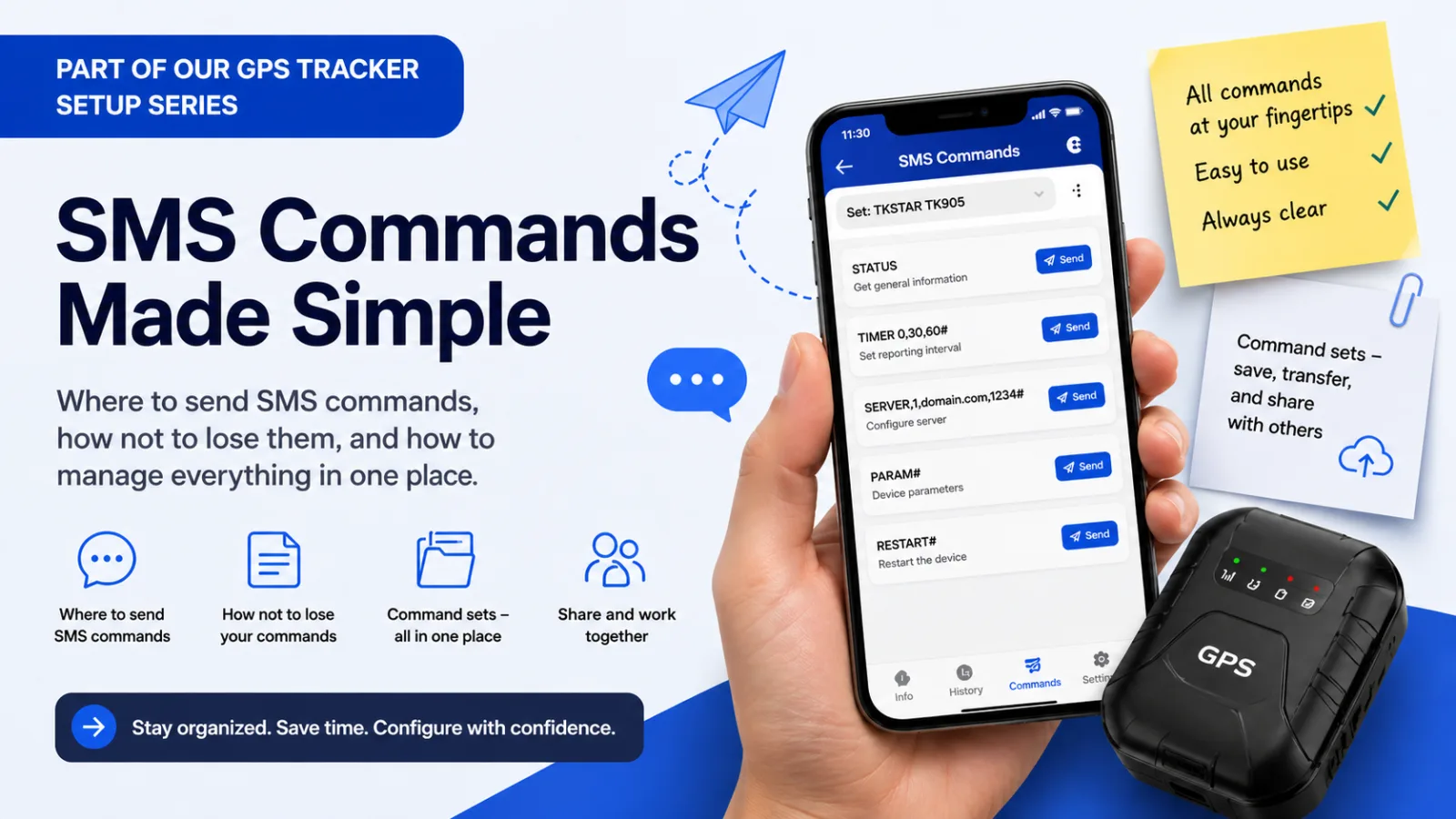
📡 Where to Enter SMS Commands for a GPS Tracker — and How Not to Lose Them
Learn where to send GPS tracker SMS commands, how to find previously sent messages, and how Mobile Dispatcher command sets keep commands organized, portable, and easy to share.
How to Set Up a SinoTrack ST-904 for a Schoolchild and Connect It to LiveGPSTracks
Set up the SinoTrack ST-904 for a school backpack: 10-second location updates while moving, sleep mode at school and at home, LiveGPSTracks connection, battery alerts, and a simple way to check the tracker before daily use.
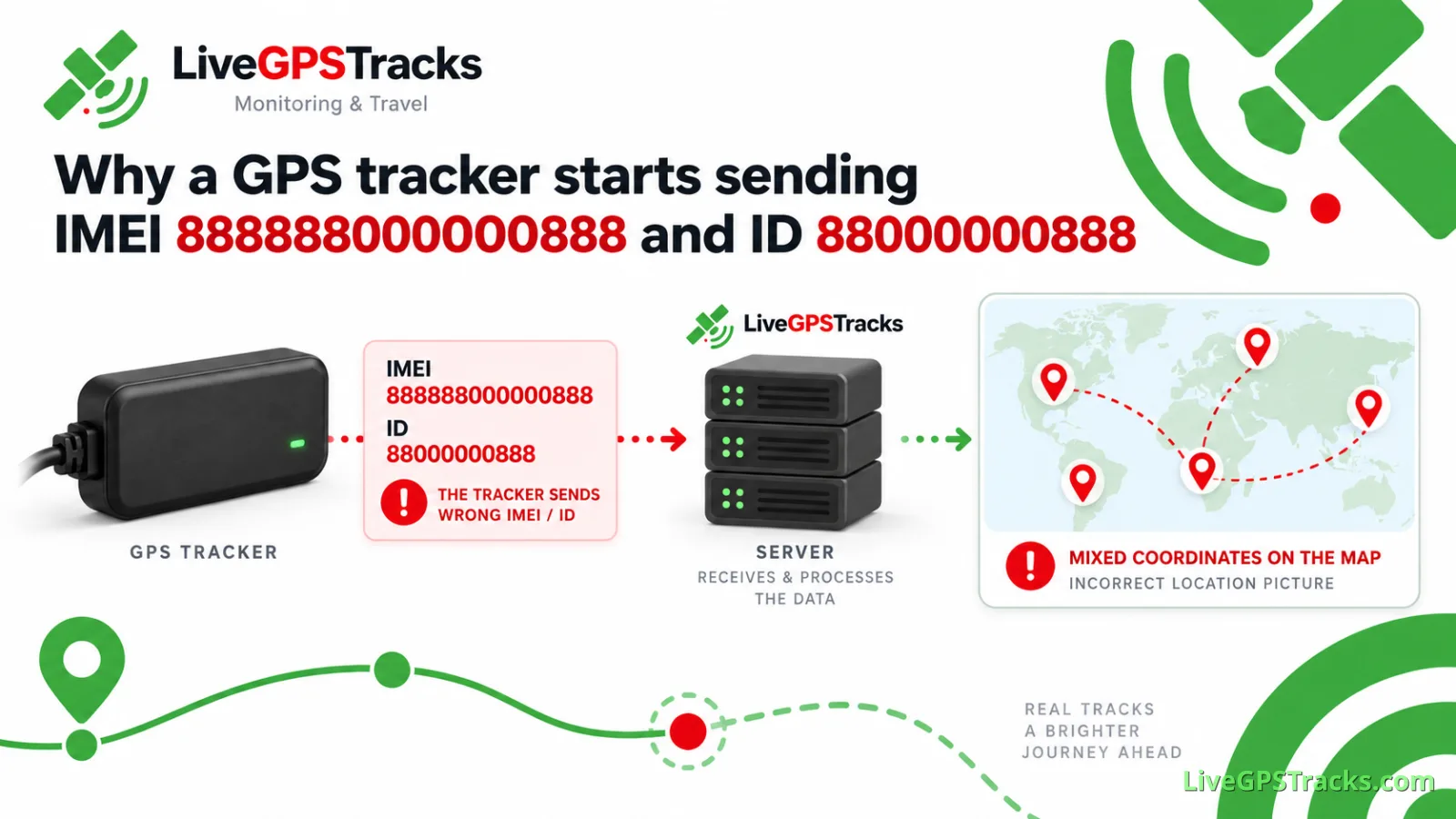
Why a GPS tracker starts sending IMEI 888888000000888 and ID 88000000888
Why some GPS trackers suddenly report IMEI 888888000000888 and ID 88000000888, why the device stops updating under its original ID, and how to restore the correct IMEI on GT02, GT02A, TK110 and similar trackers.
Comments
Sign in to comment.
No comments yet.