📡 Where to Enter SMS Commands for a GPS Tracker — and How Not to Lose Them
Learn where to send GPS tracker SMS commands, how to find previously sent messages, and how Mobile Dispatcher command sets keep commands organized, portable, and easy to share.

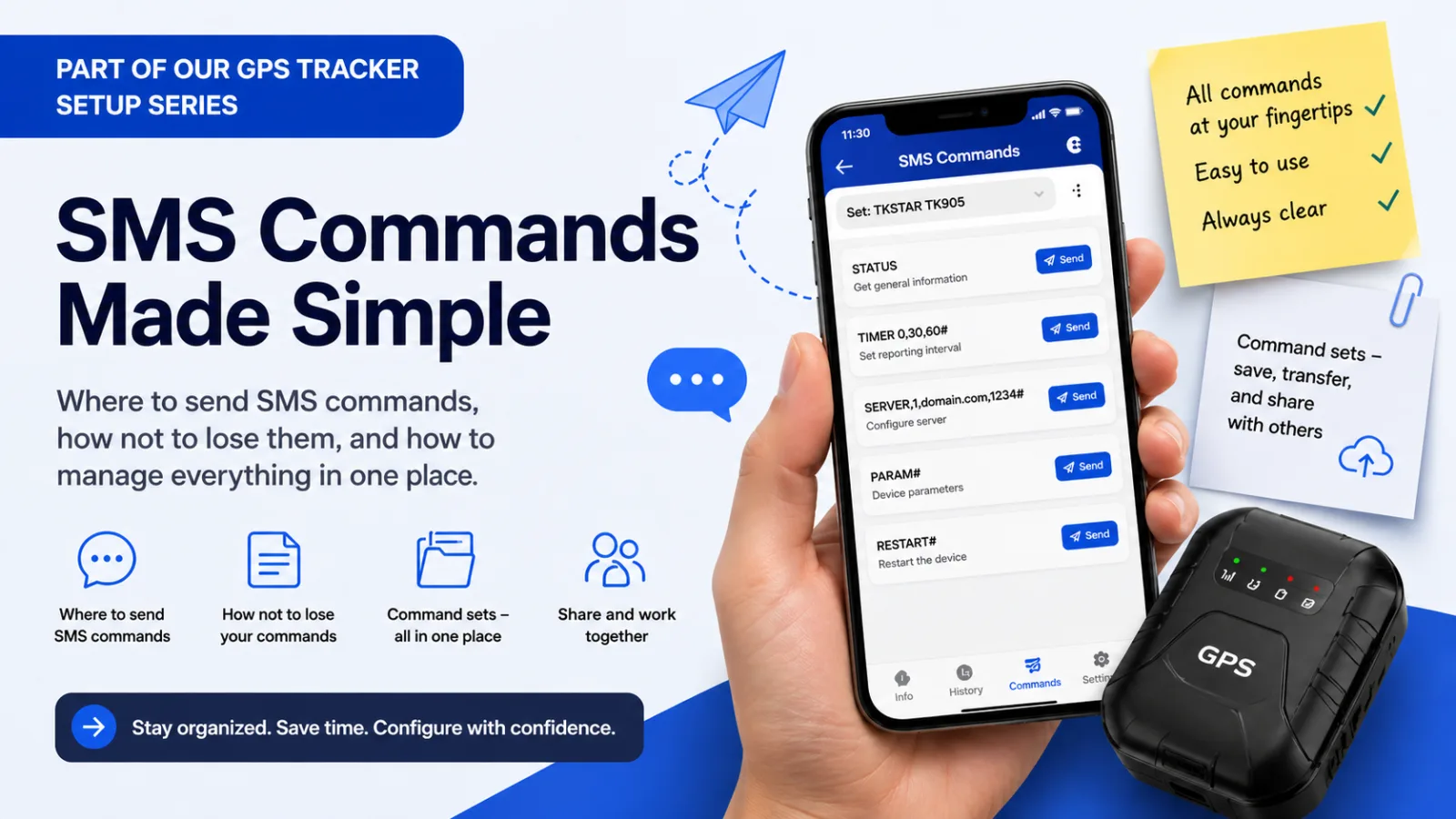
Where should you send SMS commands, and how can you keep track of them and manage everything in one place?
In a previous article, we covered how to find and understand SMS commands for GPS trackers. Now it is time for the next logical step: actually sending them to your tracker.
This is where many people get stuck:
- Where exactly do I enter these commands?
- How do I avoid losing track of them later?
Let’s break it down.
📱 The Simplest Way: Regular SMS
The easiest way to send an SMS command is to use your phone’s default messaging app, or any other SMS app you normally use.
Here is what to do:
- Open your SMS app.
- Start a new message.
- Enter the phone number of the SIM card inside your tracker.
- Type the command, for example
STATUSorTIMER 0,30,60#. - Tap Send.
Done ✅
📂 Where to Find Your Commands Later
All sent commands remain in the conversation history associated with the tracker’s phone number.
If you need to resend a command or check what you sent before, simply open that conversation.
⚠️ The Downsides of Using Only Your SMS History
Regular SMS works, but it has a few weaknesses:
- 📵 You may lose your message history when switching phones.
- 🧠 Commands become hard to remember over time: what did
pw,timer, orstatusmean again? - 🔍 Finding the right command months later can be frustrating.
- 📝 Messages contain raw command text without helpful descriptions.
Eventually, even a simple reconfiguration can turn into another round of searching.
🚀 A Better Way: SMS Command Sets in Mobile Dispatcher
To solve these problems, Mobile Dispatcher includes SMS Command Sets.
An SMS command set is a collection of saved commands with descriptions that you can quickly send to your tracker.
Read the full SMS Command Sets guide for detailed instructions.
💡 How SMS Command Sets Work
Create a command set inside the app:
- Give the set a name, for example TKSTAR TK905.
- Add a description, such as Basic setup commands for TK905 trackers.
- Add each command with its exact text and a clear label or description.
For example:
STATUS— get general device information.TIMER 0,30,60#— set the reporting interval.SERVER,1,example.com,1234#— configure the server.
Always use commands confirmed for your exact tracker model and firmware.
🔗 Linking a Command Set to a Tracker
If you already have trackers in your account, you can assign a command set to a specific model or link it manually later.
Then:
- Open your tracker.
- Switch to edit mode.
- In the Main tab, enter the phone number of the SIM card inside the device.
- Make sure the appropriate command set is linked.
📤 Sending Commands
Once everything is set up, sending a command is easy:
- Open the tracker details.
- Go to the SMS Commands tab.
- Review the saved commands and their descriptions.
- Tap Send next to the command you need.
The app will automatically:
- open your default SMS app;
- fill in the tracker’s phone number;
- insert the command text.
All you need to do is tap Send in the SMS app.
💾 Backup, Transfer, and Sharing
SMS command sets are more than a list: they are portable and shareable.
You can:
- 💾 export a command set to a file;
- 📲 import it on another device;
- 🔄 transfer your setup between phones.
If you share access to your tracker with another user, you can also allow them to use your command set. They can then manage the same tracker from their own account and app.
This is especially useful for teams, when handing over a device, or when the tracker is configured by a specialist.
⚠️ Important: How the SMS Is Sent
Sending SMS commands:
- 📡 is handled by your mobile carrier;
- 💰 is charged according to your mobile plan;
- 🚫 does not go through the tracking platform’s servers;
- 📱 is not stored on the platform.
In other words, it is a regular SMS sent directly from your phone to the tracker.
✅ Final Thoughts
Standard SMS is simple and works well. But if you want to stay organized, understand your saved commands, and save time, SMS command sets turn a scattered message history into a clear, manageable system.
For setup details, see the full SMS Command Sets guide.
Related articles
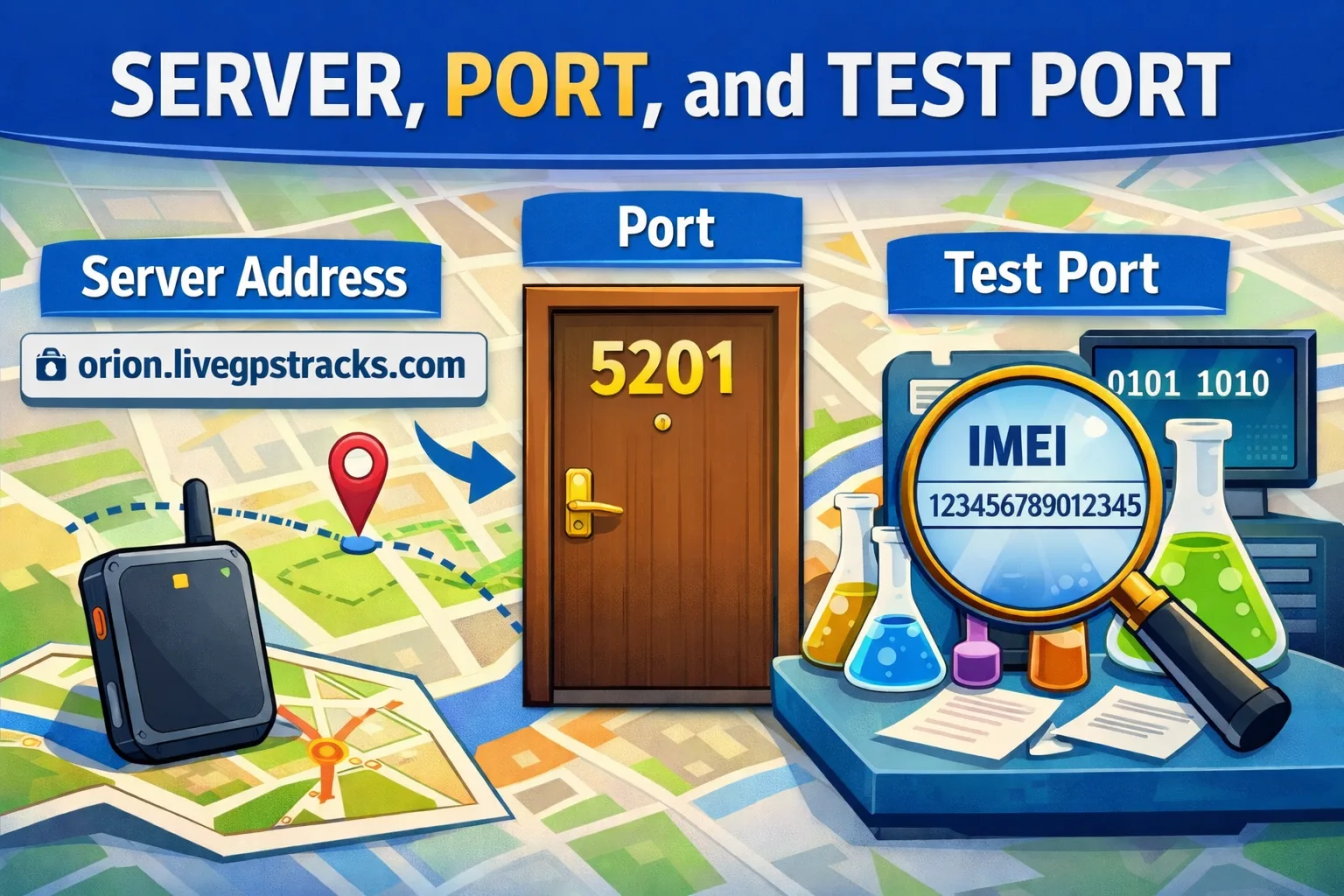
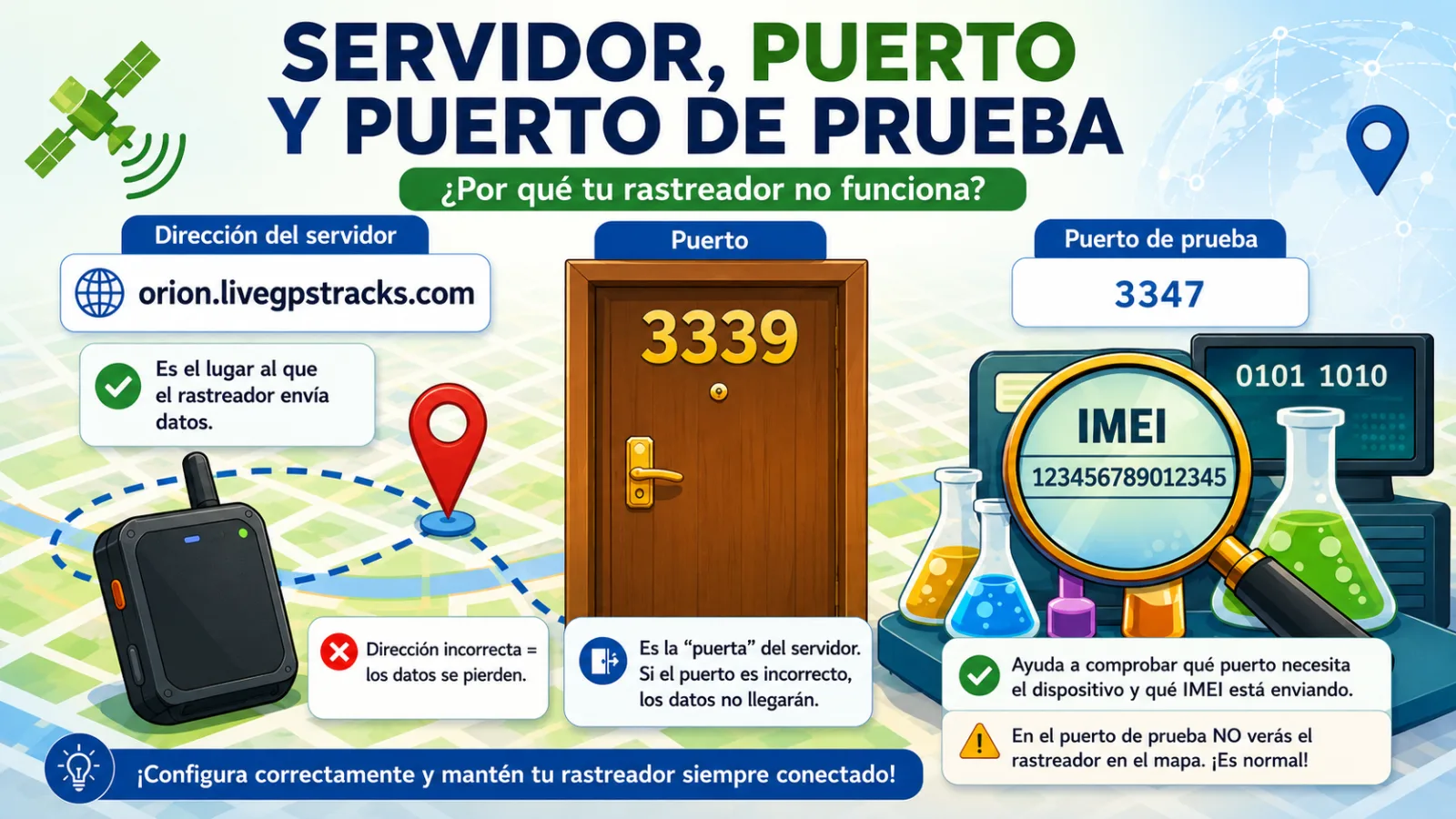
📡 Server, Port, and Test Port: How Not to “Lose” Your GPS Tracker During Setup
Learn the difference between a GPS tracker server, port, and test port in simple terms. Discover why these settings are critical, how they affect tracker connectivity, and how to troubleshoot common GPS tracking setup issues without frustration.
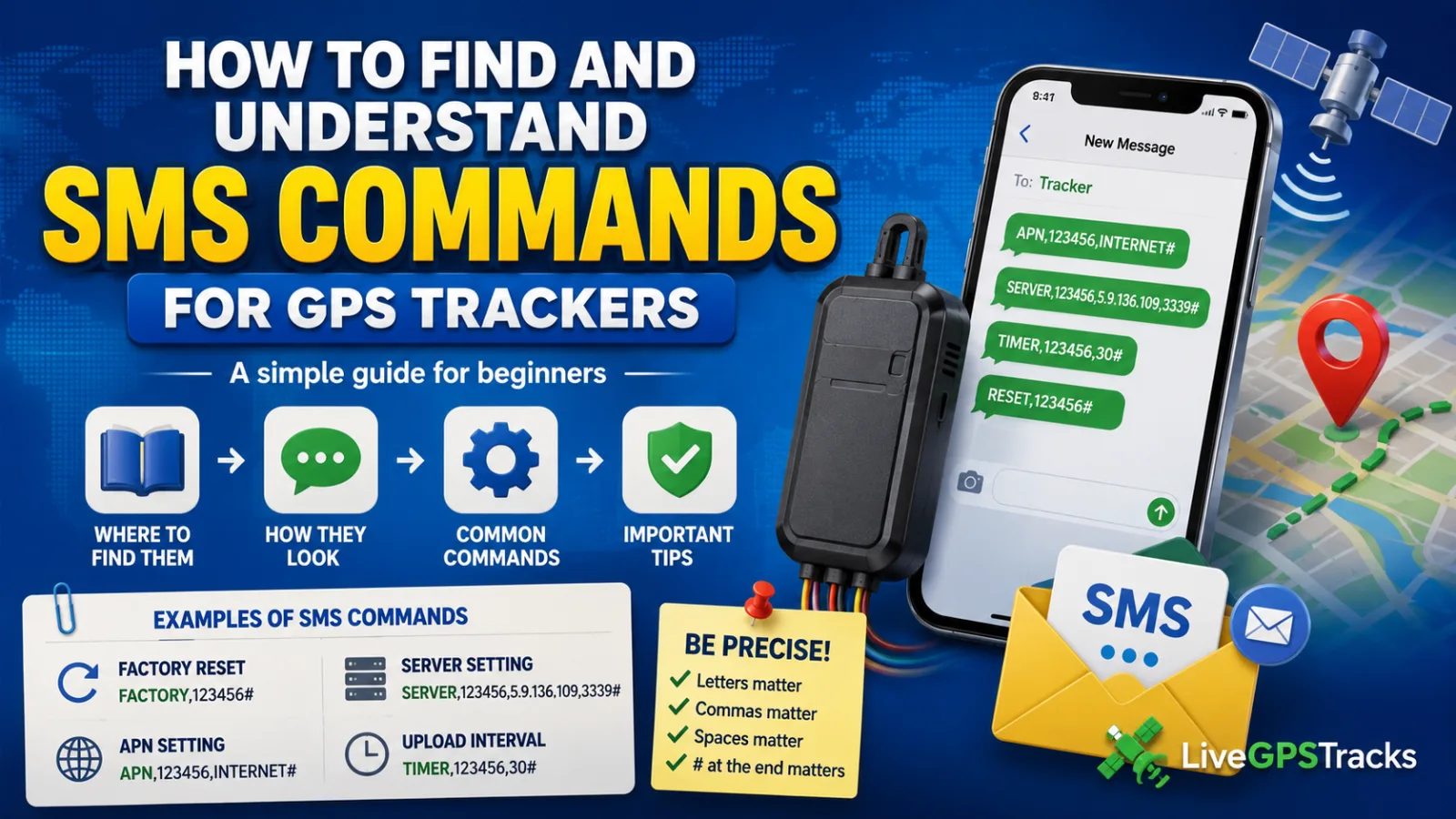
How to Find and Understand SMS Commands for GPS Trackers
Learn where to find SMS commands for your GPS tracker, how to recognize their format, and why every comma, space, and symbol matters. This beginner-friendly guide includes common examples for APN, server, reset, and data upload settings.
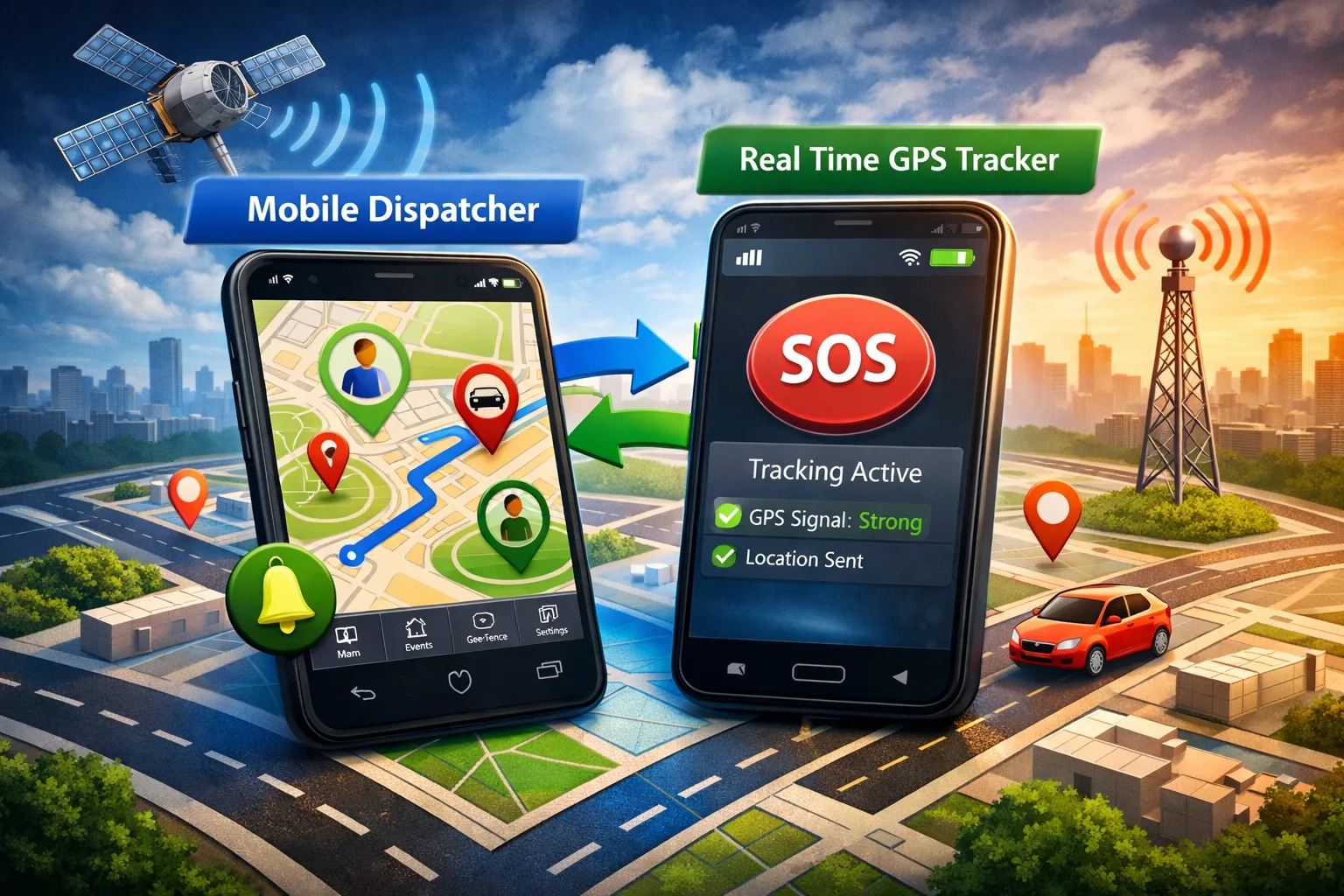
Two Mobile Apps for GPS Tracking: Full Control in One Ecosystem
Discover how two mobile apps work together to create a complete GPS tracking solution. Turn your smartphone into a GPS tracker with Real Time GPS Tracker and monitor everything in Mobile Dispatcher. Real-time tracking, alerts, geofences, SOS features, and more.
📡 Servidor, puerto y puerto de prueba: cómo no «perder» tu localizador GPS al configurarlo
Entiende qué son el servidor, el puerto y el puerto de prueba de un localizador GPS, cómo elegirlos y qué comprobar si el dispositivo no aparece en el mapa.
Comments
Sign in to comment.
No comments yet.