Cheap USB-C Hubs on Marketplaces: How to Check Display Output, Data Speed and Charging Before You Buy
Marketplace USB-C hubs often look interchangeable, but the same-shaped port can hide USB 2.0 speeds, limited display support or disappointing charging. Here is how to read the listing before paying for ports you cannot use.

A cheap USB-C hub can be one of the most useful marketplace purchases: one small adapter can add a card reader, Ethernet, USB-A ports and a display output to a laptop or tablet with only two connectors. It can also become an expensive piece of pocket clutter if the listing counts every socket but never explains what those sockets can do at the same time.
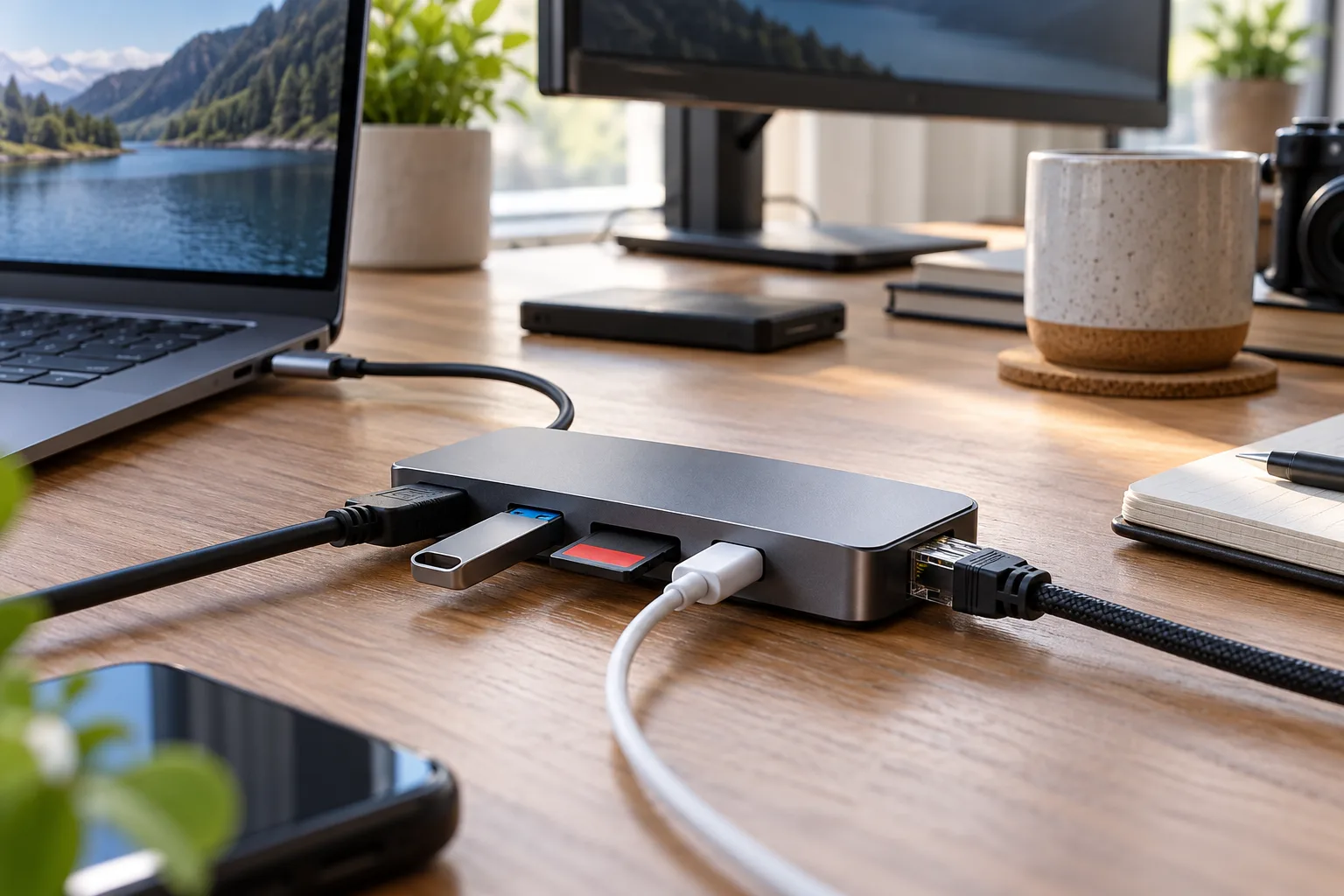
That ambiguity is the real buying problem. “USB-C” describes the connector shape, not a guaranteed speed, display mode or charging capacity. A hub advertised as “10-in-1” may have several ports that share one slow upstream connection. A product marked “100W PD” may accept a 100W charger while passing substantially less to the computer. An HDMI socket may work only when the host device supports DisplayPort Alternate Mode, and two video outputs may mirror rather than extend the desktop.
The category is active in current marketplace roundups, with inexpensive USB-C hubs commonly listed alongside other low-cost accessories. That makes it a useful place to shop, but the buyer needs to compare the specification of the complete chain: host device, hub, cable, charger, monitor and peripherals. The most important question is not how many ports are printed on the box. It is which one of your actual tasks the hub can perform without a hidden compromise.
Start with the laptop or tablet, not the listing
Before looking at a hub, identify the capabilities of the USB-C port on the device that will feed it. Two USB-C ports on the same computer can have different jobs. One may support charging and video; another may support data only. A phone or tablet may use USB-C for charging and USB data while offering no display output at all.
Look for the host device’s own documentation and search for terms such as DisplayPort over USB-C, DisplayPort Alt Mode, USB 3.2, USB4, Thunderbolt, Power Delivery input and external display support. A small lightning icon can indicate a high-speed or Thunderbolt-capable port, but icons are not consistent across manufacturers, so the manual or support page is safer.
VESA explains that DisplayPort Alt Mode allows a USB-C connector to carry DisplayPort audio and video. It also makes an important distinction: in strict terminology, a USB hub handles USB functions, while a product that adds display transport is a dock. Marketplace listings often use “hub” for both, so the name alone tells you very little.
A host that lacks video output cannot be rescued by buying a hub with HDMI. The hub has no independent video signal to manufacture. Some docks use DisplayLink technology instead, which is a different solution involving a USB graphics device and usually an operating-system driver. If a listing promises display output from an ordinary USB-C port but never identifies the technology or host requirement, treat that as a warning rather than a bargain.
Decode the speed claim before counting USB ports
USB naming remains confusing because the connector, protocol generation and negotiated speed are separate things. A USB-C socket can be limited to USB 2.0, while another USB-C socket can support USB 10Gbps, USB 40Gbps or newer USB4 modes. The shape does not reveal the performance.
The USB Implementers Forum’s consumer-facing guidance uses speed labels such as USB 5Gbps, USB 10Gbps, USB 20Gbps and USB 40Gbps. Those labels are more useful than an old phrase such as “USB 3.2 Gen 2,” but many marketplace listings still mix the old and new terminology. If the listing says only “USB 3.0,” “SuperSpeed” or “high-speed,” you still do not know whether the relevant port is 5Gbps, 10Gbps or something slower.
Even a clear speed number is not the same as a guaranteed file-copy rate. The upstream link from the hub to the computer is shared by the hub’s downstream ports. If a hub connects through a 5Gbps upstream link, several attached devices cannot each receive a separate 5Gbps lane. A fast external SSD, Ethernet adapter and card reader may compete for the same capacity.
For ordinary keyboards, mice, printers and a webcam, a 5Gbps hub is usually adequate. For moving large video files from an SSD or working with multiple fast storage devices, the upstream specification matters much more. A listing that advertises one “10Gbps” USB-C port may mean that only that particular socket reaches 10Gbps, while the USB-A ports remain at 5Gbps or USB 2.0.
Read the port table line by line. You want to see all of the following stated separately:
- the speed of the host connection;
- the speed of each USB-A and USB-C data port;
- whether the extra USB-C port is data, charging input, video-capable or some combination;
- whether speeds change when HDMI or DisplayPort is active;
- whether the card reader is UHS-I or a faster standard;
- whether Ethernet is 1Gbps, 2.5Gbps or merely described as “high speed.”
If the table lists only a total number of ports and a large “10Gbps” badge, assume the missing detail is important.
Understand what the HDMI number really promises
“4K HDMI” is not a complete display specification. Ask which refresh rate is supported: 4K at 30Hz is noticeably less fluid than 4K at 60Hz, and neither statement tells you whether HDR, adaptive sync, color depth or a second display will work.
The monitor, hub, host port and cable all participate in the result. A hub may advertise 4K output while the laptop’s USB-C port exposes only a lower-bandwidth DisplayPort mode. In some designs, enabling a faster USB data mode uses additional high-speed lanes and leaves less bandwidth for video. That can reduce the available resolution or refresh rate.
A single HDMI output is easier to evaluate than two. Dual-HDMI products often depend on the host operating system’s multi-display support and the dock’s implementation. Windows may extend two displays in a configuration that a Mac mirrors, limits to one external screen or requires a DisplayLink driver. The same listing can therefore be “works perfectly” for one buyer and unusable for another without either review being dishonest.
Check the manufacturer’s compatibility list for your exact operating system and computer model where possible. Do not rely on a product photo showing two monitors. Product photography demonstrates what the seller wants to suggest; it does not establish the supported combination of resolution, refresh rate, number of screens and USB activity.
For a single office monitor, a modest dock with a clearly stated 4K 60Hz mode may be enough. For gaming, high-refresh displays or color-critical work, a cheap multiport adapter is a more uncertain purchase. It may still be useful for presentations or a secondary screen, but the listing should not be treated as an equivalent to a full desktop dock.
Treat “100W PD” as an input figure until proven otherwise
Power Delivery claims are another common source of confusion. A hub marked “100W PD” generally describes the maximum charger power it can accept through its PD input, not necessarily the power delivered to the laptop. The hub’s controller, Ethernet adapter, card reader and attached devices consume some of that power. The remaining amount reaches the host.
The listing should state a separate maximum power to host figure. If it says only “100W charging” or “100W PD pass-through,” the practical output is unknown. A laptop that normally charges at 65W may be fine, but a computer that expects 90W or more could charge slowly, remain at a fixed battery level or discharge under sustained load.
The charger and cable must also support the requested power. USB-IF guidance distinguishes cable power ratings, including 60W and 240W markings for compliant USB-C cables. A high-wattage hub cannot force a low-rated charger or cable to supply more power safely. The laptop may also impose its own limit.
There is a useful distinction between a hub that is powered only from the computer and one with a dedicated PD input. A bus-powered adapter is convenient and often adequate for light accessories. It has less electrical headroom for multiple storage devices, Ethernet, an SD reader and a display at the same time. A powered dock is less pocketable but more predictable when several peripherals must remain connected.
Do not use an unknown hub as a substitute for a certified charger, especially with a high-power laptop, tablet or monitor. The hub is an extra link in the power path and should not be the part of the setup where you accept vague specifications.
Card readers and Ethernet deserve their own checks
A marketplace hub can look impressive because it includes SD and microSD slots, yet the reader may be the weakest part. Ask whether the listing specifies UHS-I, the theoretical maximum transfer speed, simultaneous use of both slots and whether the reader shares bandwidth with the USB ports. Photographers and video editors should check real reviews for sustained copying rather than a single burst measurement.
The same applies to Ethernet. “Gigabit Ethernet” is a meaningful claim if the product identifies a 1Gbps controller and the computer’s network connection negotiates at that rate. “2.5G” is useful only if the router, switch, cable and host connection can support it. A small hub may also run hot under sustained network and storage activity. Heat is not automatically a defect, but repeated disconnections under load are a reason to look for owner reports rather than relying on the star rating.
Check whether the Ethernet port is native USB, requires a driver, or has known operating-system limitations. Driver support matters more on tablets and locked-down work computers than on a home Windows desktop. A product that needs a downloaded utility should identify the software source clearly; avoid downloading random drivers linked through an unverified listing.
Read reviews for failure patterns, not just average stars
Marketplace reviews are most useful when you extract repeatable details. A five-star review saying “arrived fast and looks good” tells you almost nothing about sustained data transfer or display stability. Search the review text for the exact features you need: “4K 60,” “10Gbps,” “Ethernet,” “charging,” “Mac,” “Linux,” “Steam Deck,” “SD card,” “sleep,” “flicker” and “disconnect.”
Photo reviews can reveal the actual label on the underside of the product, the supplied cable, the connector length and whether the delivered model matches the listing image. They can also expose a recurring issue: a seller may combine several visually identical variants under one page, with different chipsets or port layouts. Compare the selected option with the review’s option name before treating the review as evidence for your purchase.
Negative reviews need interpretation. One failed unit may be ordinary defect rate. Ten buyers describing the same HDMI blackout after sleep, intermittent Ethernet or a hot connector indicate a design or firmware problem. Conversely, a complaint about “slow USB” may come from a USB 2.0 cable or a host port that does not support the advertised mode. Look for patterns that identify the whole chain rather than assigning every failure to the hub.
Seller age, order count and a familiar brand name are not substitutes for a usable specification. They can help establish whether a listing has a history, but the exact variant and support policy still matter. Treat inflated urgency, countdowns and “only two left” messages as sales mechanics, not technical evidence.
A practical shortlist for three common buyers
The travel user
Choose a compact hub with one clearly specified video output, two or three USB data ports, a card reader only if you need it, and PD input if the computer charges through USB-C. A short integrated cable reduces the chance of losing a separate cable, but it can be awkward with a stand or a recessed port.
A 5Gbps data connection is often sufficient for travel accessories. Prioritize connector quality, a sensible layout and a port combination that does not force cables to collide. If the hub is for presentations, confirm the display resolution used by the meeting-room monitor rather than buying around a headline 8K claim.
The home-office user
Look for a dock with a documented power-to-host figure, a stable Ethernet specification and a display mode that matches the monitor. If the laptop will remain connected all day, a slightly larger powered unit can be more useful than the smallest aluminum dongle.
Before ordering a dual-display model, confirm the operating system’s multi-monitor behavior and whether the dock uses native DisplayPort Alt Mode or DisplayLink. If the listing avoids that distinction, select a simpler single-display product or a manufacturer with a published compatibility table.
The storage and media user
Start with the upstream speed and the card-reader standard. A hub with many USB-A sockets is not automatically a good way to ingest footage. Check whether the SSD, SD reader and Ethernet share the same link and whether the hub remains stable during long transfers.
For regular high-volume work, the price difference between an anonymous dongle and a documented dock may be justified by fewer interruptions. A low-cost hub can still serve as a backup adapter, but it is a poor place to economize if a failed transfer would cost hours of work.
When a marketplace hub is worth considering
A cheap hub makes sense when the task is modest and the limits are visible. Connecting a keyboard, mouse, printer and one ordinary monitor is a much easier assignment than driving two high-refresh displays while copying from an NVMe SSD and charging a demanding laptop.
It is also reasonable to buy a low-cost adapter as a secondary or travel unit when you can test it soon after delivery. Keep the packaging and order details until you have checked every port. Test the display after sleep and restart, copy a large file rather than a few photographs, verify the negotiated Ethernet speed and check charging while the laptop is under load.
If the hub becomes hot, disconnects repeatedly, produces display artifacts or causes the charger to cycle, stop using it for important work. Do not assume a marketplace refund or dispute will have a particular outcome; preserve photos, screen recordings and the listing specification if you need to document a problem.
When to skip the bargain
Skip a listing when it combines extravagant claims with no port-by-port table. “8K,” “100W,” “40Gbps” and “10-in-1” are not useful together unless the seller explains the host requirement, the supported mode and what remains available when the ports operate simultaneously.
Skip it when the only proof is a staged desk photo, when the product variant changes after selecting an option, or when the listing does not say whether the USB-C socket is data-capable. Be cautious with high-power charging setups and work-critical storage. A documented, slightly more expensive dock from a known accessory maker may be better value once replacement time, lost work and troubleshooting are included.
The central buying rule is simple: match the hub to one defined workload, then verify the bottleneck in the chain. Count the ports last. A marketplace USB-C hub can be a practical find, but only when its limits are written clearly enough that you know what you are actually buying.
Related articles
Cheap USB-C portable monitors on AliExpress: useful second screen or dim travel gadget?
A practical buyer check for 15.6-inch marketplace screens: ports, brightness, power, stands, reviews and return risk before checkout.

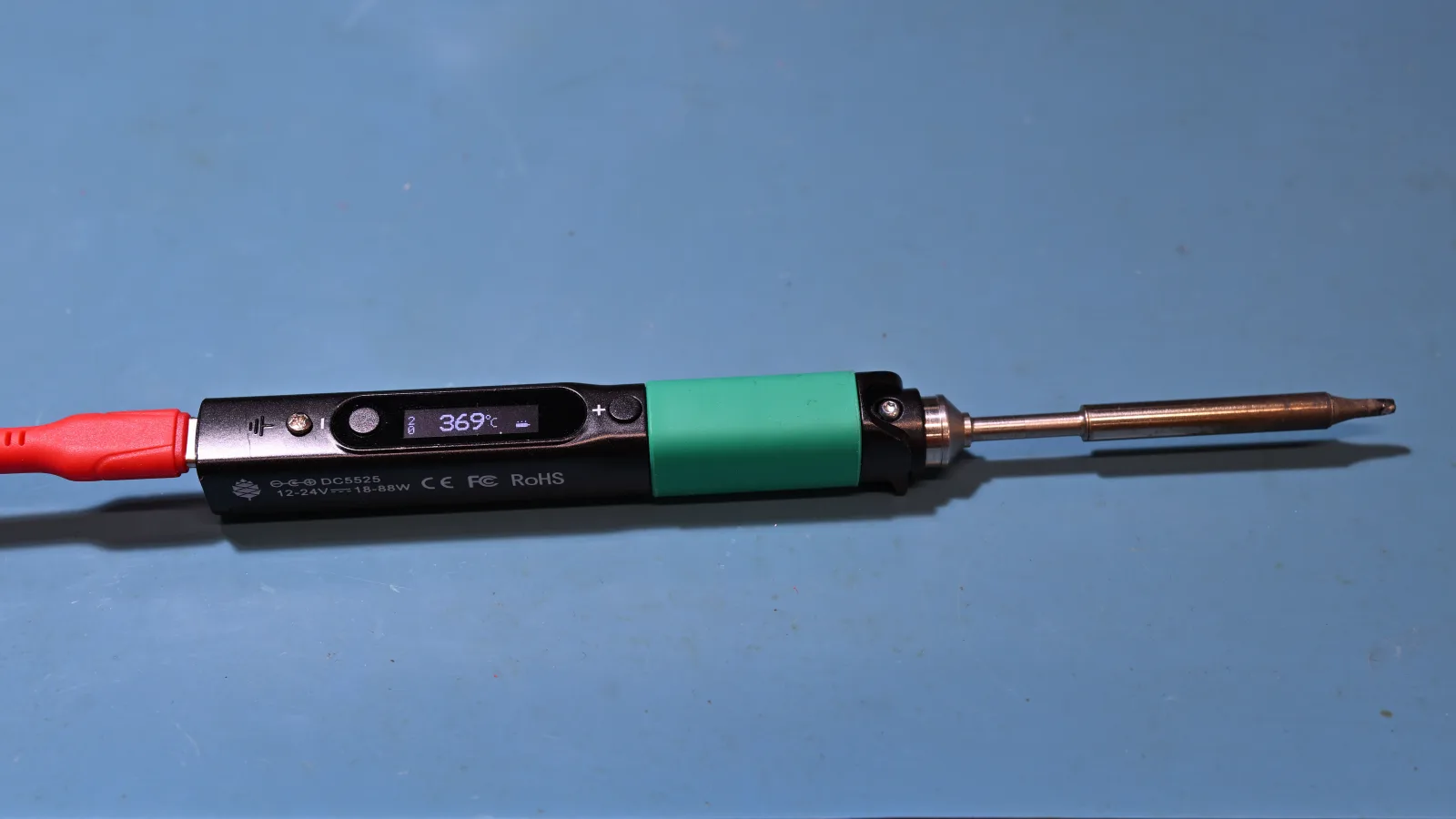
USB-C soldering irons from marketplaces: clever repair tool or unsafe starter kit?
A practical buyer check for Pinecil-style portable soldering irons, power supplies, tips, stands and safety before ordering a cheap kit.
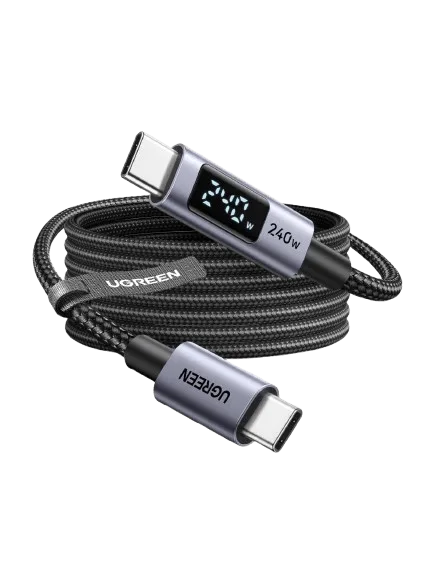
USB-C cables with a watt display: useful marketplace tool or false confidence?
A small screen can reveal charging behaviour, but it cannot certify a cable or turn a charging lead into a high-speed data cable.
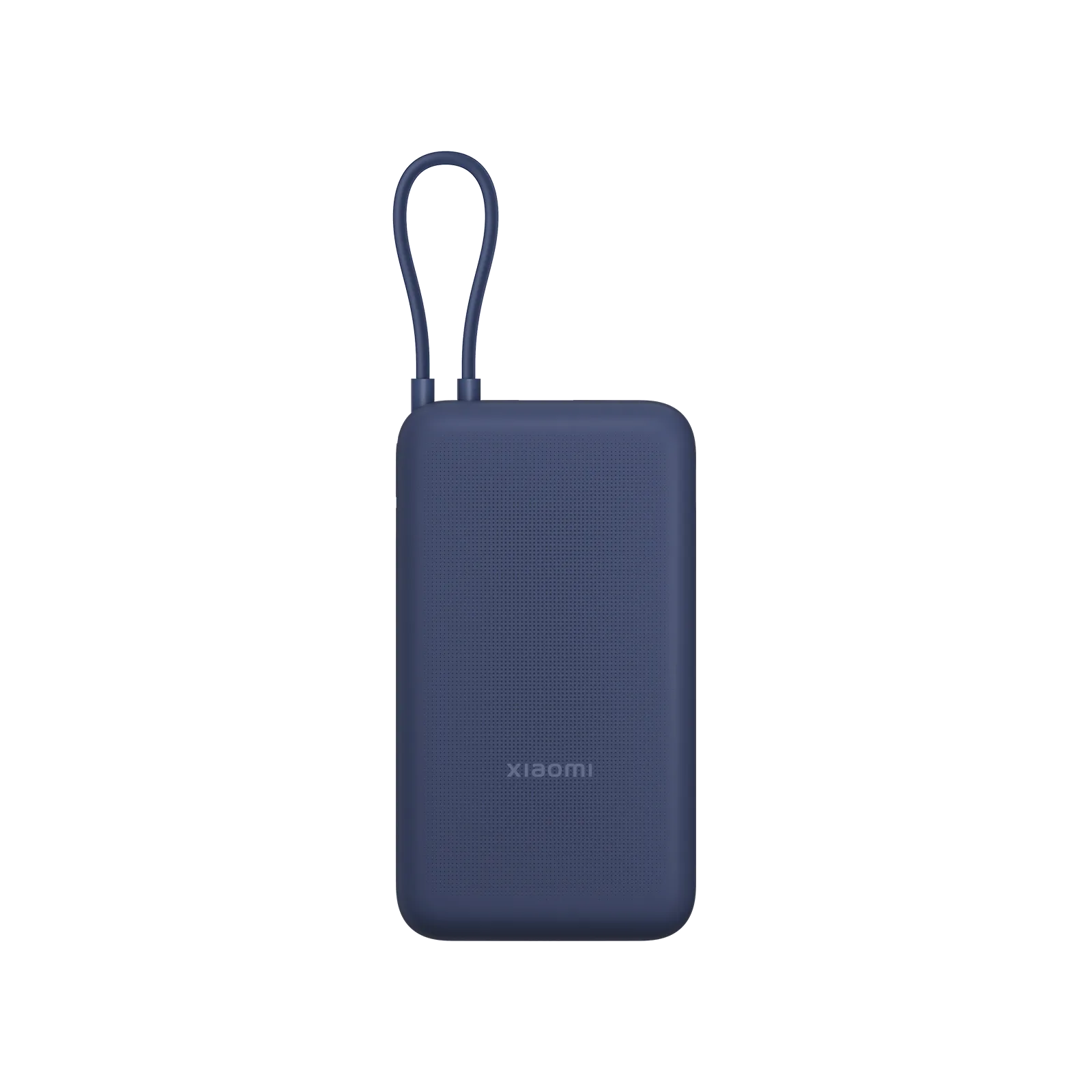
20,000 mAh power banks with a built-in USB-C cable: handy travel find or cable trap?
A practical marketplace buyer guide to integrated-cable power banks: capacity math, charging protocols, seller signals, safety caveats and when a replaceable cable is the better value.
Comments
Sign in to comment.
No comments yet.