Google’s November Nest Camera Fixes: Test Your Migrated Cameras Before Replacing Them
Google’s November 11 update targets live-stream failures, missing thumbnails, inaccurate timestamps, and restarts on migrated legacy Nest cameras. Here is what owners should test before blaming the hardware or paying for a replacement.
What Google’s November 11 update actually fixes
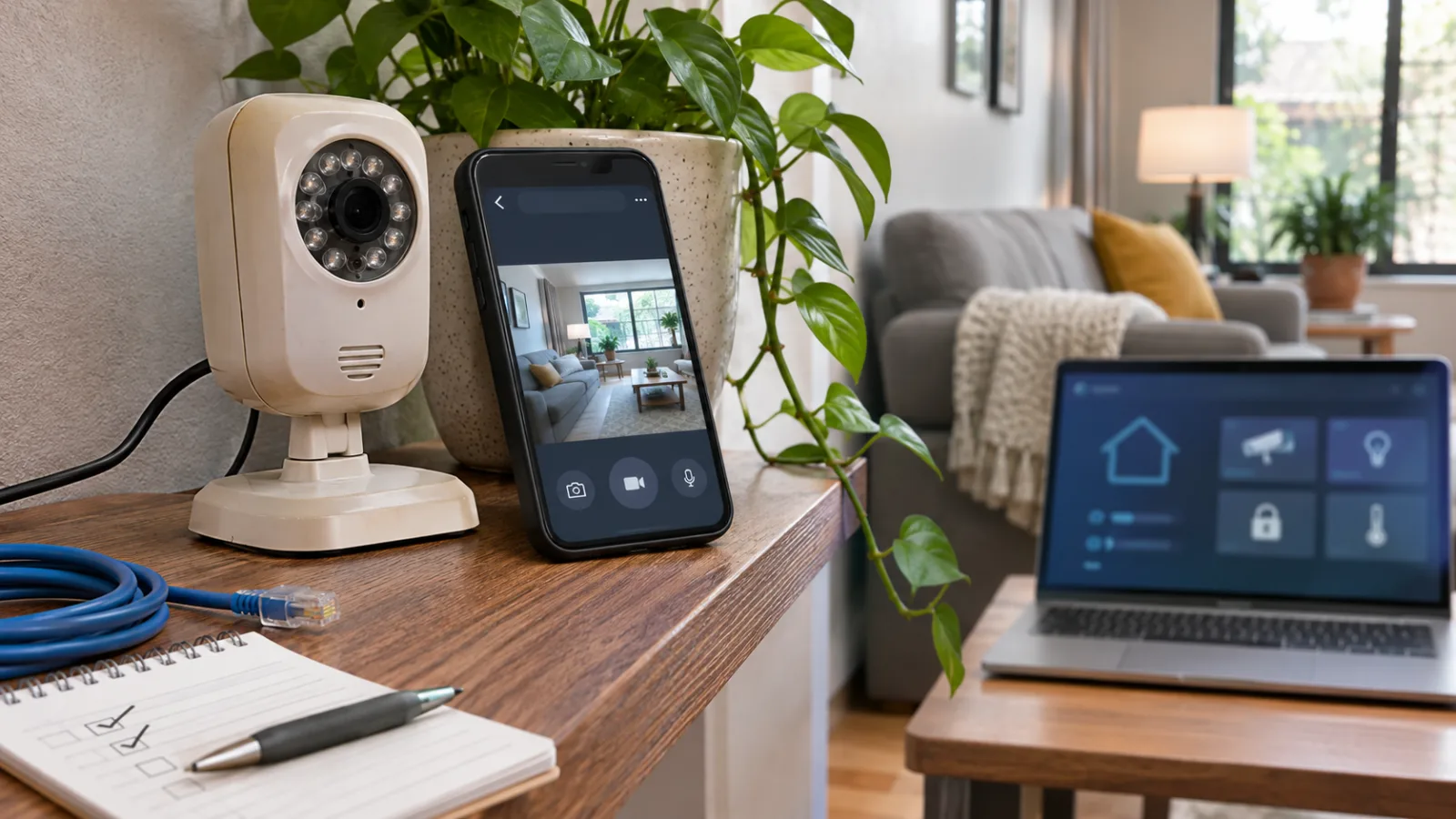
Google’s November 11 Google Home release notes describe a set of fixes aimed at older Nest cameras and the original wired Nest Doorbell after migration to Google Home. The affected hardware includes the first-generation Nest Cam Indoor and Nest Cam Outdoor, the first-generation wired Nest Doorbell, and Nest Cam IQ Indoor and Nest Cam IQ Outdoor models that have been moved into the Google Home app. That scope matters because the update is not a general promise that every Nest camera problem has been resolved. It addresses specific failures in a specific migration path, so owners should compare their device and symptom with the release notes before treating the update as evidence that a camera needs to be replaced.
The most visible change concerns live-stream connection failures. Google says the update fixes cases in which affected cameras could fail to connect to live video on some PPPoE, fiber, and mobile-hotspot connections. In practical terms, the camera may still be powered and connected to its account while the live view fails at the point where the app tries to establish the stream. The wording is important: the fix applies to some connection environments, not necessarily every network configuration. A camera that continues to fail on a different network, or that cannot be reached at all, may have a separate account, network, firmware, or hardware problem.
The release also restores event thumbnails for Nest Cam IQ Indoor and Outdoor cameras. A missing thumbnail can make the event history appear incomplete even when recorded activity is present, so owners should check both the list of events and the individual recordings after the update. The notes further mention more accurate playback timestamps. That is a smaller-looking correction, but it affects how reliably users can interpret an event’s timing, compare it with notifications, and review a sequence of recordings. If the displayed time was previously inconsistent with the event itself, a corrected timestamp may change the apparent order or duration of activity without changing the underlying camera footage.
Google also lists updated security certificates and fewer unexpected restarts among the fixes. Updated certificates are part of the software path that allows a supported camera and Google’s services to establish trusted connections; they are not a new camera feature and do not by themselves guarantee that every connection issue will disappear. Fewer unexpected restarts should make the affected devices more stable, but the release notes describe a reduction in restarts rather than a guarantee that a camera can never reboot. These distinctions are useful when testing: a single successful live view does not prove that every issue is fixed, while one failed attempt does not prove that the hardware has reached the end of its life.
The same November release includes other Google Home changes, but they should not be confused with the camera corrections. Gemini-related capabilities, Matter energy features, and other updates may appear in the same release information, yet they do not explain whether a migrated legacy camera can stream, show event thumbnails, display accurate playback times, or remain stable. For a camera owner, the relevant checklist is narrower: identify the model, confirm that it was migrated to Google Home, install the current app and device software, then test live view, event history, timestamps, and unexpected restarts separately. Keeping those results separate makes it easier to tell whether the November fixes addressed the actual failure or whether another limitation remains.
Why a failed live view does not automatically mean the camera is dead
A camera that will not open a live stream is not necessarily a camera that has stopped working. The distinction matters especially for older Nest devices moved into Google Home, because live viewing, event recording, notifications, playback history, and the camera’s network connection can fail independently. An owner may still see recorded events or receive activity notifications while the live view refuses to load. That combination can look like a hardware failure even when the camera is still communicating with Google’s services and recording some activity.
This is why the first useful question is not “Should I buy a new camera?” but “Which function is actually failing?” Google’s November 11 release notes identify live-stream connection failures affecting some migrated legacy cameras, including cases involving PPPoE, fiber, and mobile-hotspot connections. The same update addresses other camera problems, such as missing Nest Cam IQ event thumbnails, inaccurate playback timestamps, updated security certificates, and unexpected restarts. Those fixes are relevant to diagnosis: a blank thumbnail, a misleading time in history, or a camera that restarts can point to a software or account-path problem rather than a dead lens, damaged cable, or failed camera board.
Community reports add an important complication. Some owners described first-generation Nest cameras losing live streaming after being moved into Google Home, while the older Nest app was still usable. These reports do not prove that every migration produces the same result, and they do not establish that the legacy app will remain available or complete for every account. They do show why a single failed screen in Google Home is weak evidence on its own. The migration guidance should be read alongside the symptom: the device may be eligible for transfer, yet a particular feature can still behave differently after the move.
Use a controlled sequence before changing subscriptions, deleting the old app, or treating the camera as defective:
-
Bring the software up to date. Confirm that Google Home is current and allow the camera to receive its available update. Then retry the live view after the update rather than judging the device from the first failed attempt.
-
Test the same camera on two connections. Try live view on the home Wi-Fi connection, then test from mobile data. If the camera works on one path but not the other, record that difference. It can indicate a connection-specific problem, particularly when the home network uses PPPoE or fiber, or when the test involves a mobile hotspot.
-
Check event history separately. Look for recent clips or recorded events even if live view fails. Note whether thumbnails appear, whether playback opens, and whether the displayed times match the actual event sequence. A camera that continues to produce history is showing a different failure pattern from one that is entirely offline.
-
Separate notifications from recording. Record whether alerts arrive, whether the related event is present in history, and whether the notification opens the clip or only produces an error. This helps distinguish a notification problem from a recording, playback, or live-stream problem.
-
Compare another supported device or viewing path. If another eligible camera or device opens normally in Google Home, test the affected camera from the same account and connection. Where the setup allows it, compare the Google Home experience with the legacy Nest app without deleting or resetting anything. The purpose is to isolate the camera, the app, the account, and the network rather than to create another migration change during diagnosis.
-
Write down the exact result. Note the camera model, whether it was migrated, the network used, the time of the test, and whether the failure concerns live view, event history, thumbnails, timestamps, notifications, or the camera’s connection. Also record restarts or certificate-related prompts. Precise evidence is more useful than a general report that the “camera is broken.”
If live view fails but events continue to record, the camera has not yet passed the threshold for replacement. The result should be treated as a software, account, or network-path issue until the same failure survives tests across the available viewing paths and connections. Conversely, if the camera disappears from the account, produces no history, cannot connect on a known-working network, and shows the same behavior after the relevant update, the evidence becomes stronger—but the migration and subscription consequences still need to be checked before making an irreversible change.
The migration trade-offs to check before changing apps or subscriptions
A camera that works in the Nest app is not automatically equivalent to the same camera after it has been transferred to Google Home. Google’s transfer guidance identifies which older Nest devices can move, but eligibility is only the starting point. Before changing apps, check what happens to camera history, controls, notifications, web access, and model-specific features in the destination app. The practical question is not simply whether migration is available; it is whether the migrated setup still provides the functions you rely on every day.
That distinction matters especially for first-generation Nest cameras, the original wired Nest Doorbell, and Nest Cam IQ models. A migration can change where a device is managed and how its recordings are viewed, while a subscription can determine which history or features remain available. Treat the move as a configuration change that needs to be documented and tested, rather than as a harmless sign-in step. Write down the camera names, room assignments, notification preferences, recording settings, and any features that are important to your household before making further changes. Preserve screenshots or other evidence of the current state if a setting later appears to be missing.
Do not delete the Nest app, remove the camera from the account, or reset the device merely because Google Home does not immediately show the expected result. Keeping the existing setup intact gives you a reference point: you can compare whether a problem is limited to Google Home, affects the account, or follows the camera across both apps. It also avoids turning a software or migration problem into a more difficult recovery exercise. If the camera still records events or remains usable in the older app, that is useful diagnostic evidence even when the newer app has a broken live view, incomplete history, or missing controls.
Subscription status deserves a separate check. Google’s migration guidance warns that the available path depends partly on the Nest Aware plan associated with the devices. In particular, upgrading to Google Home Premium can affect whether you can return to a first-generation Nest Aware plan. That makes a subscription change more consequential than a routine feature upgrade: it may alter the choices available if the migrated experience does not meet your needs. Review the current plan and the proposed plan before confirming an upgrade, and record which cameras and history are covered under each option.
The safest sequence is to test first and subscribe second. Confirm that the migrated camera appears under the intended home and room, then check live view, recent events, playback timestamps, notifications, and the controls you actually use. Test the same camera from the relevant network conditions, including home Wi-Fi and mobile data where possible, because a feature that works in one context may fail in another. If web access matters, verify it independently rather than assuming that every camera feature available in an app is also available through Google Home for web. Older cameras may have narrower web support, so the web interface should be treated as an additional access method to validate, not as proof that the migration is complete.
Keep a short record of each result: app used, account, network, camera, and function tested. Separate a missing feature from a failed feature. A control that was never supported after migration is a compatibility limitation; a control that worked and then stopped is a fault worth reporting. The distinction can prevent unnecessary hardware purchases and can make a support request more precise. It also helps identify whether the problem is limited to history, notifications, live viewing, or the camera’s connection itself.
Changing apps may still be reasonable when Google Home provides the controls and history you need, but it should be a deliberate choice. If the older Nest app remains essential for a camera-specific function, keep that dependency in your decision record and avoid assuming that a future migration reversal will restore every previous arrangement. Until the software path has been tested across the camera, account, network, and subscription settings, replacing working hardware is premature. The cost of a new camera cannot resolve a lost feature that is controlled by app compatibility or plan rules.
A replacement decision based on evidence, not migration frustration
The November fixes are a reason to test a migrated camera again, not a guarantee that every device or feature will immediately behave as it did before the move to Google Home. If live view returns, event history loads, thumbnails appear where expected, and playback timestamps are coherent, the most practical decision is to keep the camera and document the result. That is especially true when the camera passes the same checks on more than one connection and the problem was limited to the Google Home experience. A short test record—camera model, app version, connection used, and the functions that worked—can make it easier to distinguish a resolved software problem from a recurring one.
A useful final check should cover the whole path rather than a single button. Open the live stream from the Google Home app, then review recent events and confirm that recordings correspond to the times shown. Repeat the live-view test on the home network and on mobile data when possible, because a camera that works on one path but not the other points to a connection or service interaction rather than proving that the hardware has failed. Check notifications separately from live view, and note whether a failure affects the camera feed, event history, thumbnails, timestamps, or only one control. If another supported camera or device is available, comparing it under the same account and network conditions can show whether the issue is isolated to the migrated model.
The second case is a camera that still has one broken Google Home function but otherwise passes local and network checks. That is a reason to wait, preserve evidence, and report the remaining defect rather than immediately paying for replacement hardware. The distinction matters because event recording can continue even when live viewing fails, and a missing thumbnail or inaccurate timestamp can make the system appear less reliable than the camera itself is. Keep the original Nest app installed until the migration result is understood, avoid deleting configurations that may be useful for comparison, and save screenshots or precise descriptions of the failure. The goal is to make the remaining problem reproducible: identify the model, the account state, the connection, the affected app, and the exact action that fails.
Before changing apps, plans, or hardware, also account for the cost of losing features. Migrating older cameras can change which history, controls, notifications, camera-specific options, and web access are available. Google Home for web has limits with older cameras, so a browser-based workflow should be tested rather than assumed. Subscription state is another important part of the decision: Google’s transfer guidance warns that moving between Nest and Google Home is not simply a cosmetic app change, and upgrading to Google Home Premium can affect the ability to return to a first-generation Nest Aware plan. That makes it sensible to verify the current plan and the features it supports before accepting a new subscription as the solution to a migration problem.
Replacement or a broader redesign becomes reasonable when the failure survives the controlled checks across the available apps, networks, firmware or update state, and account configuration, or when the migration has removed a feature that is essential to the household’s use of the camera. At that point, the decision should include more than image quality or purchase price. Consider whether continued cloud dependence is acceptable, whether the subscription cost remains justified, and whether the replacement system provides the controls and history you actually need. Privacy expectations should be part of that assessment as well; a different camera architecture may change how much of the system depends on remote services, but no replacement should be treated as a blanket security guarantee.
The practical conclusion is therefore conditional. Keep the migrated camera when the November changes restore the functions that matter and repeated tests show stable behavior. Wait and report the issue when the hardware and network checks pass but one Google Home function remains broken. Replace or redesign only when the evidence points to a persistent failure or an unacceptable loss of required features. This approach prevents migration frustration from becoming an unnecessary hardware purchase while still leaving room to move on when the software path no longer meets the needs of the installation.
Related articles
Google’s Matter Room-Sensor Update for Nest: Wait for the Compatibility List Before You Buy
Google is opening the 4th-generation Nest Learning Thermostat to compatible Matter temperature sensors in December. The useful question is not whether a sensor has Matter, but whether Google Home will let it guide heating in your specific home.
IKEA Matter-over-Thread is cheap smart home, but not yet effortless
IKEA’s new Matter devices could make smart homes cheaper, but early pairing issues show why buyers still need to understand hubs, Thread routers and setup risk.

Apple HomeView is a $299 smart-home hub. The real question is whether your home fits Apple’s rules
Apple’s first smart display combines a 7-inch screen, Siri AI, FaceTime, home controls and personalized profiles. Its value depends less on the hardware than on language support, Apple devices, home hubs, subscriptions and the accessories you already own.
Should You Buy Apple HomeView? The $299 Smart Display Has a Narrow First-Generation Case
Apple HomeView is a polished answer to a problem many households do not have yet. Its private, family-aware design is promising, but the $299 price, Apple-only focus, launch limits, and unproven Siri AI make waiting the sensible choice for most buyers.
Comments
Sign in to comment.
No comments yet.