A Faster Internet Plan Won’t Fix Every Slow Smart Home: Find the Real Bottleneck First
When streaming, gaming, cameras and smart-home devices compete for the same connection, the problem may be your plan, Wi‑Fi coverage, interference or one busy device. Here is how to tell which one before buying new equipment.

A crowded home network can make a fast internet plan feel surprisingly slow. A television buffers while a laptop uploads photos, a video call becomes choppy when a game starts, or a smart camera drops offline just as several people begin streaming. The obvious response is to buy a faster plan or a newer router. Sometimes that is the right answer. Often it is not the first answer.
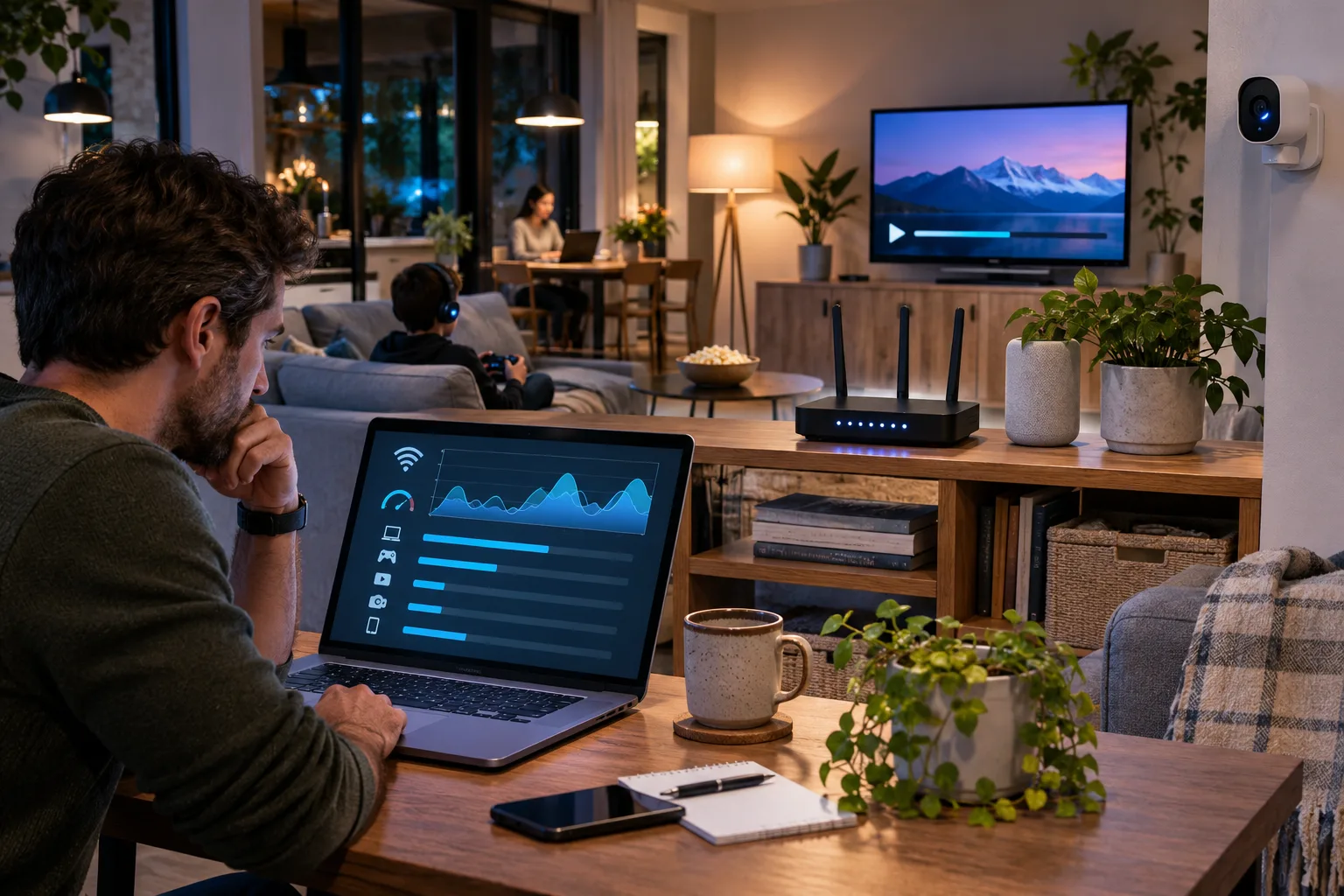
The useful question is not how many devices are connected. It is how many devices are demanding meaningful bandwidth at the same time, and whether the slowdown is happening between your home and the internet or inside your home’s Wi‑Fi network.
A recent Engadget analysis of crowded home networks highlighted the distinction. A household can run into the limit of its internet service, the limit of a wireless link, or both. Those failures look similar from a sofa, but they need different fixes.
Start with the limit that is actually failing
There are three separate parts to diagnose:
- The service coming into the home. Your internet plan sets the maximum connection between the provider and the modem or gateway. If several people are downloading, streaming and uploading at once, the connection may be saturated.
- The Wi‑Fi radio link. Your devices still have to communicate with the router. Distance, walls, interference, a congested channel or an older device can make this link slow even when the internet plan is fast.
- The device or application. A single laptop running a cloud backup, console downloading a large game, security camera uploading video or computer installing an update can consume a disproportionate amount of capacity.
These limits interact. A router located behind a television cabinet may deliver poor Wi‑Fi to the bedroom even with a gigabit service. A new Wi‑Fi 7 router cannot create more capacity in a 100 Mbps plan. A 1 Gbps plan cannot stop a distant 2.4 GHz device from struggling through several walls.
Google’s troubleshooting guidance makes the same point: devices compete for bandwidth, while distance, building materials, frequency, interference and the capabilities of the client device also affect performance. That is why a speed test beside the router is not enough evidence to justify a new plan.
Count active demands, not connected gadgets
The number shown in a router’s device list is a poor measure of network load. A smart plug may exchange a few kilobytes. A camera may continuously upload video. A television may pull several megabits per second for a stream, while a console silently downloads a large update in the background.
Netflix recommends a stable connection of at least 15 Mbps for one 4K stream, 5 Mbps for Full HD and 3 Mbps for HD. Those figures are recommendations for Netflix playback, not a universal bandwidth formula, but they provide a useful baseline. Four simultaneous 4K streams would already represent about 60 Mbps of recommended capacity before accounting for video calls, game downloads, cloud backups, overhead and other household traffic.
The calculation is simple:
simultaneous demand ≈ video streams + calls + downloads + uploads + headroom
If three people are watching 4K video, one person is on a video call and a computer is uploading a large photo library, comparing the household to the advertised download speed alone can be misleading. Download and upload are separate constraints. A household with a generous download plan may still experience poor calls or slow backups if its upload capacity is small.
Headroom matters because applications do not use a perfectly constant amount of bandwidth. Video quality can change, downloads burst, and several devices may request data at the same moment. A connection that is technically large enough on paper can still feel unstable when it operates near its ceiling.
Run a controlled test before buying anything
A useful diagnosis takes less time than shopping for a router. Test the network under repeatable conditions.
First, run a speed test on a device connected close to the main router. Use the same device for each comparison. Record download speed, upload speed and latency if the test provides it. Run the test once when the house is quiet and again during the slowdown.
Next, repeat the test from the room where the problem occurs. If the result is strong beside the router but much weaker in the problem room, the service plan may not be the main issue. The wireless path, placement or coverage deserves attention.
Then temporarily stop the largest activities. Pause a game download, cloud backup, camera upload or high-resolution stream. If the affected device immediately improves, the network was likely congested by simultaneous demand. If nothing changes, investigate coverage, interference, the device itself or an outage.
A simple test matrix helps:
| Test | Quiet network | Busy network | What it suggests |
|---|---|---|---|
| Beside router | Strong | Strong | Service and main Wi‑Fi link may be healthy |
| Problem room | Weak | Weaker | Coverage, walls, interference or client radio |
| Beside router | Strong | Weak | ISP capacity or simultaneous household demand |
| Problem room | Strong at times, unstable at others | Unusable | Interference or variable congestion |
Do not treat one speed test as a verdict. Google notes that test results vary by server location, time of day, network congestion and the device running the test. A test is a snapshot, not a permanent property of the connection.
What a faster plan can and cannot solve
An internet upgrade is most likely to help when the problem follows the household’s total activity. If every device becomes slow during evening streaming, the router is nearby, and the provider’s test shows the service reaching its limit, additional capacity may be worthwhile.
It can also help when several people need high-bandwidth activities at once: multiple 4K streams, large downloads, cloud gaming, video meetings and frequent uploads. The right speed depends on actual simultaneous use, not the number of residents or the number of smart-home products.
A faster plan will not fix:
- A router placed in a closed cabinet or at one end of a large home.
- A weak connection through dense walls or several floors.
- Interference from nearby networks or other radio devices.
- An old phone, television or laptop with a limited Wi‑Fi radio.
- A bad Ethernet cable, slow switch or port negotiating at 100 Mbps instead of 1 Gbps.
- A device that is malfunctioning or consuming bandwidth unexpectedly.
- A provider outage or a modem that needs attention.
Buying more capacity for a coverage problem can make the bill larger without changing the experience in the room where the trouble happens.
Improve placement before replacing the router
Router placement is a surprisingly common bottleneck. The main unit should be as central and open as practical, not hidden behind a television, inside a cabinet or next to a large appliance. Keep it away from obvious sources of radio interference and avoid burying it under other equipment.
Google recommends moving the router or Wi‑Fi point to a more open location and checking mesh placement. The goal is not to create a perfect line of sight through every room, but to avoid unnecessary obstacles and long, weak paths.
If one room consistently has poor coverage, move the client closer as a test. If the result improves immediately, the problem is likely the wireless path. A mesh point or wired access point may help, but placement is important: a mesh node installed in a weak-signal dead zone simply repeats a weak connection. A node placed where it still receives a healthy signal can extend coverage more effectively.
Wired backhaul is useful when available. Connecting an access point or mesh unit over Ethernet avoids using the same wireless channel for both the connection to the main router and the connection to nearby devices. It may require more installation effort, but it can be more reliable than adding wireless nodes indefinitely.
Do not confuse 2.4 GHz reach with 5 GHz speed
Modern routers often use several bands. The 2.4 GHz band generally travels farther and can work better through obstacles, but it has fewer channels and is often more crowded. The 5 GHz band can offer higher practical speeds at shorter range, although walls and distance reduce its performance more quickly.
That creates a trade-off. A device at the far edge of a home may remain connected on 2.4 GHz but perform poorly during a large transfer. A nearby laptop may perform better on 5 GHz. Older smart-home products may support only 2.4 GHz, which is one reason a new router cannot automatically make every device fast.
Do not force every gadget onto one band without testing. Smart-home devices can be sensitive to band steering, roaming and setup requirements. A network that works well for a phone may still be awkward for an older camera or appliance. Compatibility is part of the diagnosis.
Look for the device consuming the connection
When the network slows, inspect activity rather than guessing. Common culprits include:
- Game consoles downloading updates while nobody is playing.
- Computers syncing photo libraries or cloud drives.
- Phones backing up videos over Wi‑Fi.
- Security cameras uploading high-resolution footage continuously.
- Smart televisions or streaming boxes downloading system updates.
- Operating-system updates occurring across several computers at once.
- A guest device running a large download.
- Malware or an unwanted application using the connection.
Many routers show per-device activity, and some systems let you pause a device or assign priority. Google’s network-management tools, for example, can prioritize a device or activity such as video conferencing. That can improve an important call, but it does not create bandwidth. Google warns that reserving capacity for one device can slow other devices when the provider connection is already limited.
Prioritization is therefore a traffic-management tool, not a substitute for capacity or coverage. Use it for a real need, such as keeping a work call stable while a console updates. Remove the priority afterward if it causes unexplained slowdowns elsewhere.
A camera problem may really be a bandwidth problem
Smart cameras make crowded networks harder to diagnose because they need a steady connection rather than a short burst. Google’s guidance for Nest cameras specifically recommends checking whether other devices are using large amounts of speed, temporarily turning off competing devices and lowering camera video quality if necessary.
That advice applies beyond Nest. If a camera drops offline during a video call, the camera may not be defective. The upstream connection may be saturated, the Wi‑Fi signal may be weak, or the camera may be competing with several other uploads. Test the camera near the router, then test it with other high-bandwidth activities paused. The two results can distinguish a coverage problem from a capacity problem.
The same reasoning applies to doorbells, baby monitors and other always-on products. Their traffic may be modest compared with a 4K movie, but their connection needs to remain available continuously. A short period of congestion can be enough to cause an alert, recording gap or reconnection delay.
When a new router is justified
A router replacement becomes more defensible when the existing hardware is old, cannot deliver the speeds your service provides, lacks useful management controls, has inadequate coverage, or is unstable even after placement and device checks.
Look for the actual limitation:
- If wired speed from the router is high but wireless speed is poor, focus on Wi‑Fi coverage, radio conditions or client compatibility.
- If wired and wireless tests are both slow at the same time, check the modem, provider and plan.
- If only one device is slow, test that device elsewhere and check its software, radio standard and link speed.
- If the connection fails when several devices are active, examine total demand and upload saturation.
- If a second router was added without proper configuration, overlapping networks may create roaming and interference problems.
A new product should solve a measured problem. Wi‑Fi 6 or Wi‑Fi 7 labels do not guarantee that every older phone, camera or television will become faster. The client device, distance, channel conditions, Ethernet backhaul and internet service still determine the result.
A practical order of operations
Use this sequence before spending money:
- Check whether the slowdown affects one device, one room or the whole home.
- Run wired or close-range speed tests when the network is quiet and busy.
- Pause downloads, backups, cameras and high-resolution streams one at a time.
- Compare the problem room with the area near the main router.
- Move the router into an open, more central position if possible.
- Check whether the affected device is using 2.4 GHz, 5 GHz or an older Wi‑Fi standard.
- Inspect router activity, connected devices and Ethernet link speeds.
- Try wired connections for stationary high-demand devices such as televisions, consoles and desktop computers.
- Only then compare a faster internet plan, mesh system, access point or router replacement.
This order also reduces wasted troubleshooting. If pausing one laptop’s upload fixes every other device, a mesh system is unlikely to be the first purchase. If every room near the router works but one bedroom does not, increasing the service tier is unlikely to repair the wall between them.
The buying rule for a crowded connected home
The practical lesson is simple: buy capacity for capacity problems, coverage equipment for coverage problems and a new router for router problems. A household’s network is a chain, and the slowest active link often determines what people notice.
Before upgrading, write down which activities happen at the same time, which rooms are affected and whether the problem appears on wired connections. Use Netflix’s per-stream recommendations as a starting point, Google’s troubleshooting steps to separate congestion from signal and interference, and your router’s activity view to identify heavy users.
That small amount of evidence is more useful than the device count on a marketing page. Ten low-bandwidth gadgets may be harmless. One camera upload, one cloud backup and one console download can be enough to make a supposedly fast home feel broken.
Related articles
Apple’s M6 MacBook Pro Is a Strong M1 Upgrade—but a Harder Sell for Recent Buyers
Apple’s new 14-inch MacBook Pro with M6 starts at $1,999 and promises major gains in graphics, local AI, connectivity, and battery life. The practical question is which owners will notice the difference—and which should wait.

The iPhone 18 Pro’s variable-aperture camera is useful, but it is not a reason for everyone to upgrade
Apple’s iPhone 18 Pro adds a mechanical variable-aperture main camera, manual exposure controls, a new chip and better claimed battery life. Here is what those changes mean in ordinary photos, video, upgrades and buying decisions before full reviews arrive.

Amazon’s 2026 Echo Dot Is Also an eero Extender: The Wi‑Fi Trade-Off Buyers Need to Check
The new $99.99 Echo Dot adds a smart-home hub and eero Wi‑Fi extension to a familiar speaker. That makes it more useful in an Amazon home, but only if your network, placement, privacy settings, and Alexa+ plans fit the device.

Ray-Ban Meta Audio Glasses Remove the Camera: What You Gain, What You Lose, and Who Should Buy Them
Meta’s new Ray-Ban Meta Audio glasses turn smart eyewear into an audio accessory by removing the camera. That makes them easier to wear around other people, but it also removes the feature that gives camera-equipped models their most distinctive uses.

Comments
Sign in to comment.
No comments yet.